Insta360 InSight and AI Recording Summary
InSight is our premiere, value-added AI: An intelligent meeting assistant. After logging in to your account, you can record meetings directly in the client and automatically obtain complete text transcripts and AI-generated summaries, helping you and your team efficiently capture and retain meeting content.
Operation Process
1. Preparation Before Starting
- Log in to your account: Make sure you are logged in to your Insta360 official website account in the Link Controller client. The AI recording summary feature is not available without logging in.
- Check audio: Click the microphone icon at the bottom to confirm that the correct audio input device is selected.
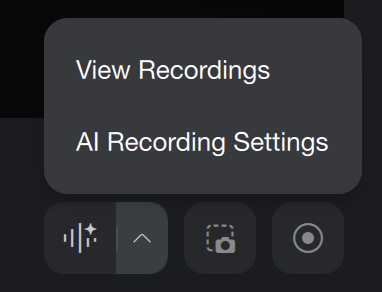
- Recording settings: Click the “^” next to the “AI Recording” button in the client to access settings.
- Summary: When enabled, after ending the recording while connected to the internet, the AI will generate a summary using the default template.
- Recording Language: Set the language used during recording. The AI will transcribe and summarize based on this language to improve accuracy.
- Local Cache Location: Used to temporarily store recordings that have not yet been uploaded. The file will be automatically deleted after upload.
- Meeting Recording Reminder: When a meeting is detected to start and the audio input device is selected as Link 2 Pro or Link 2C Pro, the system will automatically prompt you to start recording.
2. Start AI Recording
- Recording: On the main interface of the client, click the “Start AI Recording” button to begin capturing meeting audio. (You must review and agree to the privacy policy before first use.)
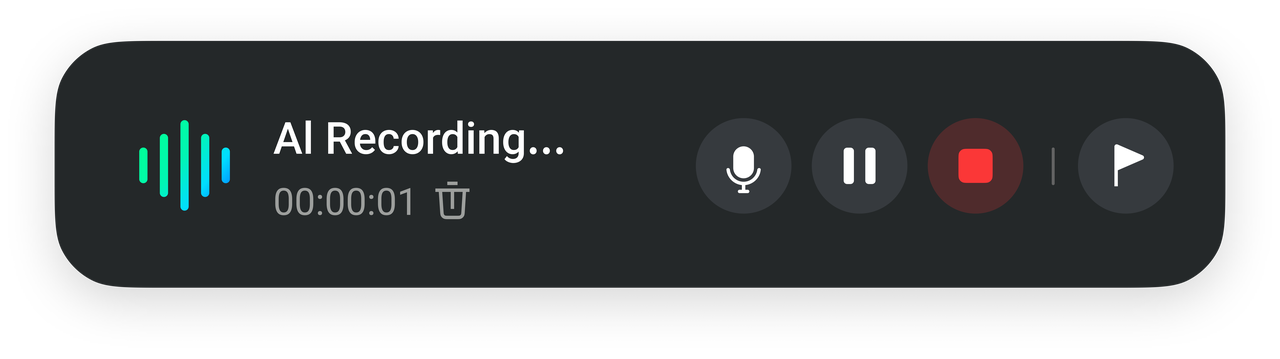
- Controls: During recording, you can pause or resume at any time, or click the microphone icon to temporarily mute. You can also quickly locate and mark important moments in the recording.
- Stop: After the meeting ends, click the red “Stop Recording” button to end the recording. The system will automatically upload the audio (closing the window will not affect file upload). You can then choose to manually generate an AI text summary or set it to be generated automatically in advance.
3. View and Use the Recordings
- View in the client: After recording ends, click the “^” next to the “AI Recording” button in the client and select “View Recordings” to enter the InSight web page to view files.
- In-depth analysis on the InSight website: Visit the InSight website to view the complete interactive transcript, AI-generated meeting summaries, extracted to-do items, and other in-depth insights. It also supports locating and exporting key content. Click here to learn more about the features of the InSight website.
Tips:
- This is an optional feature and does not affect the core hardware performance or daily use of the device.
- As a Link 2 Pro or Link 2C Pro user, you will receive 300 minutes of free transcription time to try the feature. For longer recording time, more transcription minutes, or access to advanced features, you can choose a paid subscription.
- Click here to learn more about InSight.



.svg)

