Using Insta360 InSight AI Features
After recording audio with the Insta360 Wave, you can use Insta360 InSight to access your cloud recordings, transcribe them into text with one click, and generate meeting summaries.
How to Activate
- Connect the device to your computer using a USB-C cable.
- Download and install the desktop client Insta360 Wave Controller.
- Bind your account to activate AI features.
Once activated, go to Settings > AI Features to enable or disable Auto Summary, choose the transcription language, and view or upgrade your subscription plan. You can also enable or disable cloud sync under Cloud Management.
Access Methods
To access Insta360 InSight on your computer, click the InSight icon in the desktop client or visit https://insight.insta360.com.
How to Use
- After recording, on the touchscreen, go to More > Files and select the desired file. Tap the ai summary button, then scan the QR code displayed on the device screen to view the generated summary and transcription.
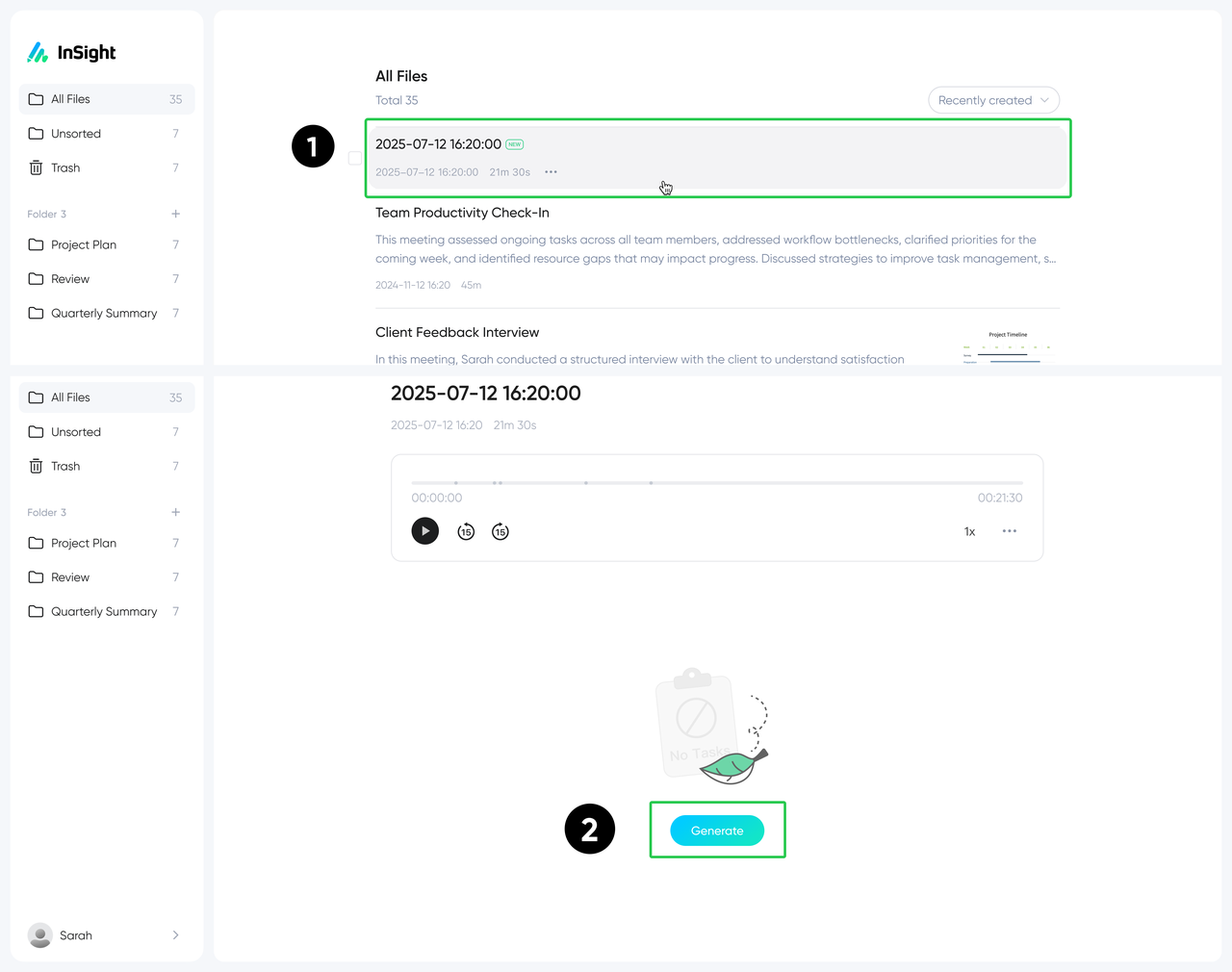
- Go to Settings > AI Features > Cloud Management and enable Cloud Sync. Once enabled, recordings will automatically upload to the cloud when the device is connected to the internet. You can view uploaded audio files on the InSight website and click Generate to create a summary.
- In AI Features > AI Summary, enable Auto Summary to automatically sync all recordings to the cloud and generate summaries automatically.


.svg)

