Connecting to the App and Transferring Files
Manual Connection
- Power on the camera and enable Bluetooth on your phone.
- Open the Insta360 app to complete the connection to X6.
NFC Connection
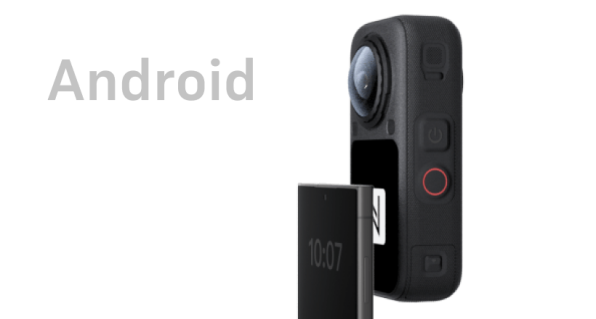
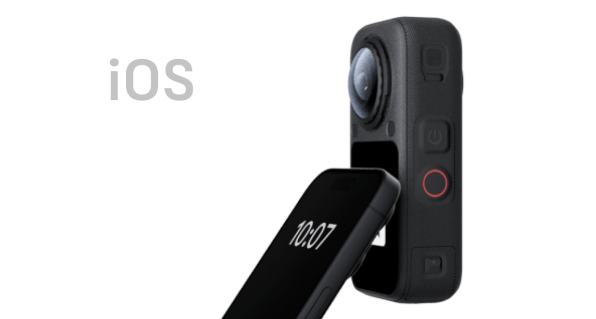
To enable rapid interconnection between the camera and your phone, Insta360 X6 supports NFC touch connection:
- Enable both Wi-Fi and Bluetooth on your phone. For Android phones, please enable NFC in the status bar or device settings.
- Bring your phone's NFC detection area close to the NFC sensing zone on the lower half of the camera touchscreen. This will quickly wake the camera, launch the Insta360 app, and complete the connection. The system will automatically jump to the Album page.
Transferring Files
- Enter the App Album page.
- Tap the "Multi-Select" icon in the upper right corner and choose the footage you wish to transfer.
- Tap the export icon at the bottom to save the footage to your phone's local gallery. Do not exit the App or lock your phone screen during the export process.
- Tap the download icon at the bottom to download the footage into the App album.
\Notes:*
- The position of the NFC sensor chip varies depending on the smartphone brand and model. Please locate the specific sensing area based on your actual phone model.
- NFC compatibility and connection experience depend on your phone's hardware support.
- Tip for Apple (iOS) Users: If the touch connection fails, try tilting the phone slightly upright while pressing it against the camera's sensing zone for a more reliable connection.