File Storage
The camera features 64 GB built-in storage (47 GB available storage), and users can also choose to insert a microSD card. To ensure smooth shooting, X6 requires a microSD/TF card that complies with the UHS-I standard (V30 speed class or above), and is formatted as exFAT. Otherwise, recording may be interrupted or files may be corrupted due to insufficient card speed.
Built-in storage read speed: 450 MB/s. Test conditions: Measured in a laboratory environment using the built-in storage with a MacBook Air M2.
Selecting Storage Media
Auto-Detection
- Insert a microSD card and power on the camera.
- Once the camera detects the microSD card, a prompt will appear asking whether to switch footage storage to the microSD card.
- Tap Confirm to switch to the microSD card.
Manual Switch
- Swipe down to enter the Shortcut Menu.
- Swipe right to enter the leftmost screen (Storage Page) to display the current storage medium.
- Tap either storage option (Built-in Storage or microSD Card), then tap Confirm to complete the switch.
Formatting the Camera Storage Card
It is recommended to regularly transfer camera files to a phone or computer for backup and format the camera storage card to prevent insufficient storage or related exceptions.
The following guides describe how to format the storage card via X6 or the Insta360 app.
Via X6
- Insert the storage card into X6.
- Press the Power Button to power on the camera.
- Swipe down from the top of the screen to enter the Shortcut Menu, then swipe right to enter the leftmost screen. Tap Storage Management and select Format.
Via the Insta360 App
- Connect X6 to the Insta360 app.
- Enter the Insta360 app settings page, and go to Device Settings > Camera Storage > Format to format the card.
\Note: If formatting the storage card via a computer, ensure it is formatted to exFAT with the default allocation unit size.*
External Devices
X6 supports a variety of accessories to meet unique shooting needs across different scenarios.
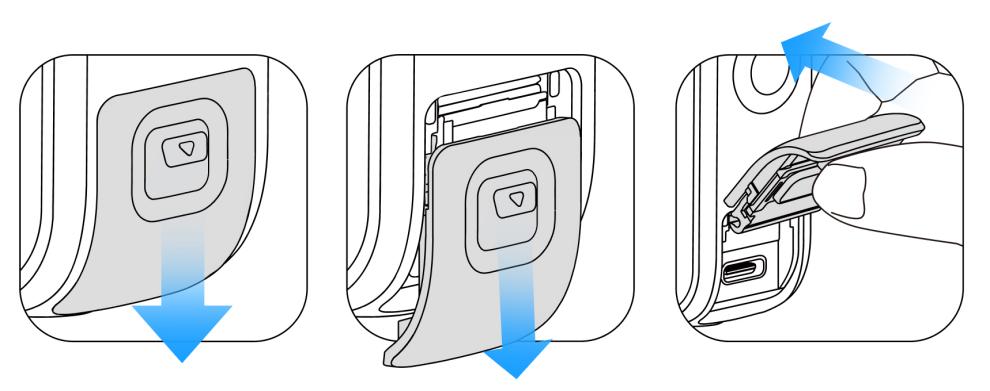
- Removable USB Cover: The USB cover is hot-swappable. Open the cover, then pull it directly and firmly outward to detach it.
- Accessory Installation: Once the USB cover is removed, official accessories such as the Charge Audio Adapter and Quick Reader can be installed.
- When you have finished using the camera or are using the camera on its own, ensure that the cover is tightly closed and the orange indication mark is completely hidden, so as not to compromise its waterproofing performance.