Online Chat
Office Hours: 24/7
Start Chat


When the camera is powered on, the touchscreen displays the camera's home page and information about the shooting mode, battery level, and storage capacity. By swiping or tapping the screen, you can achieve the following:
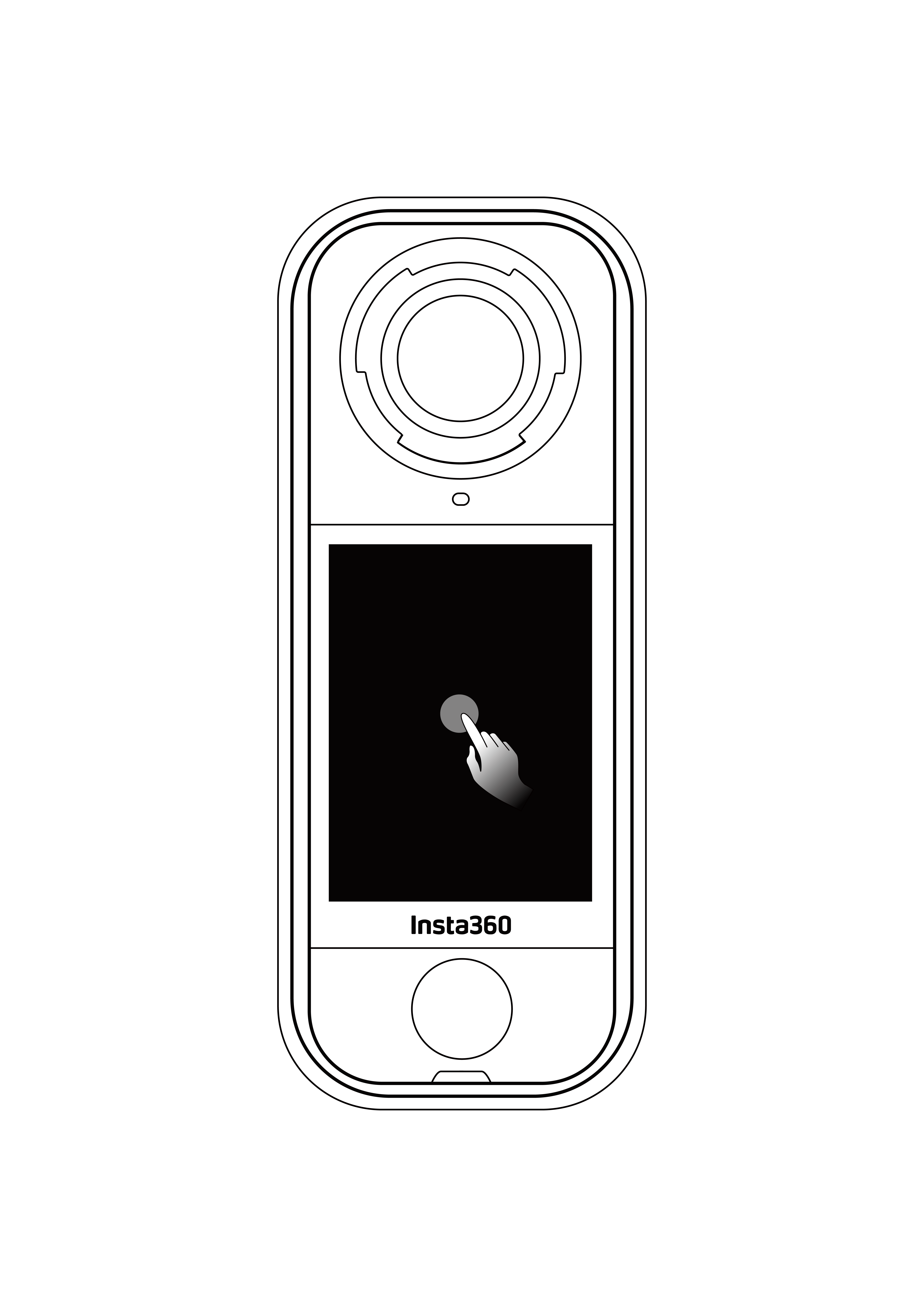 Tap the screen Hide/show information on the touchscreen. |
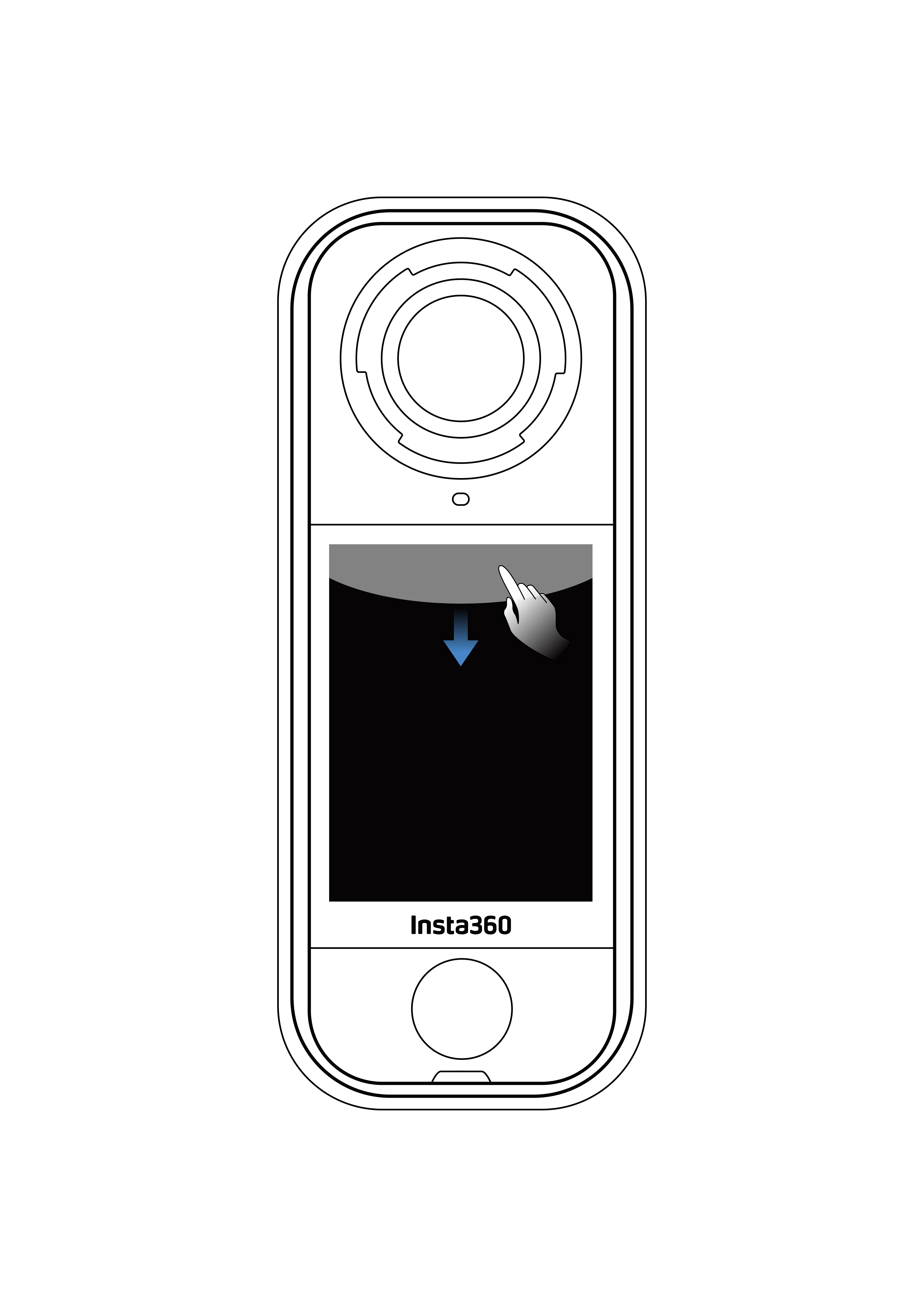 Swipe down from the top View Shortcut Menu. |
 Swipe left to right or up and down from the center Adjust the angle in 360 Mode. |
 Swipe from the left Enter the album page. |
 Swipe from the right Enter shooting parameter settings. |
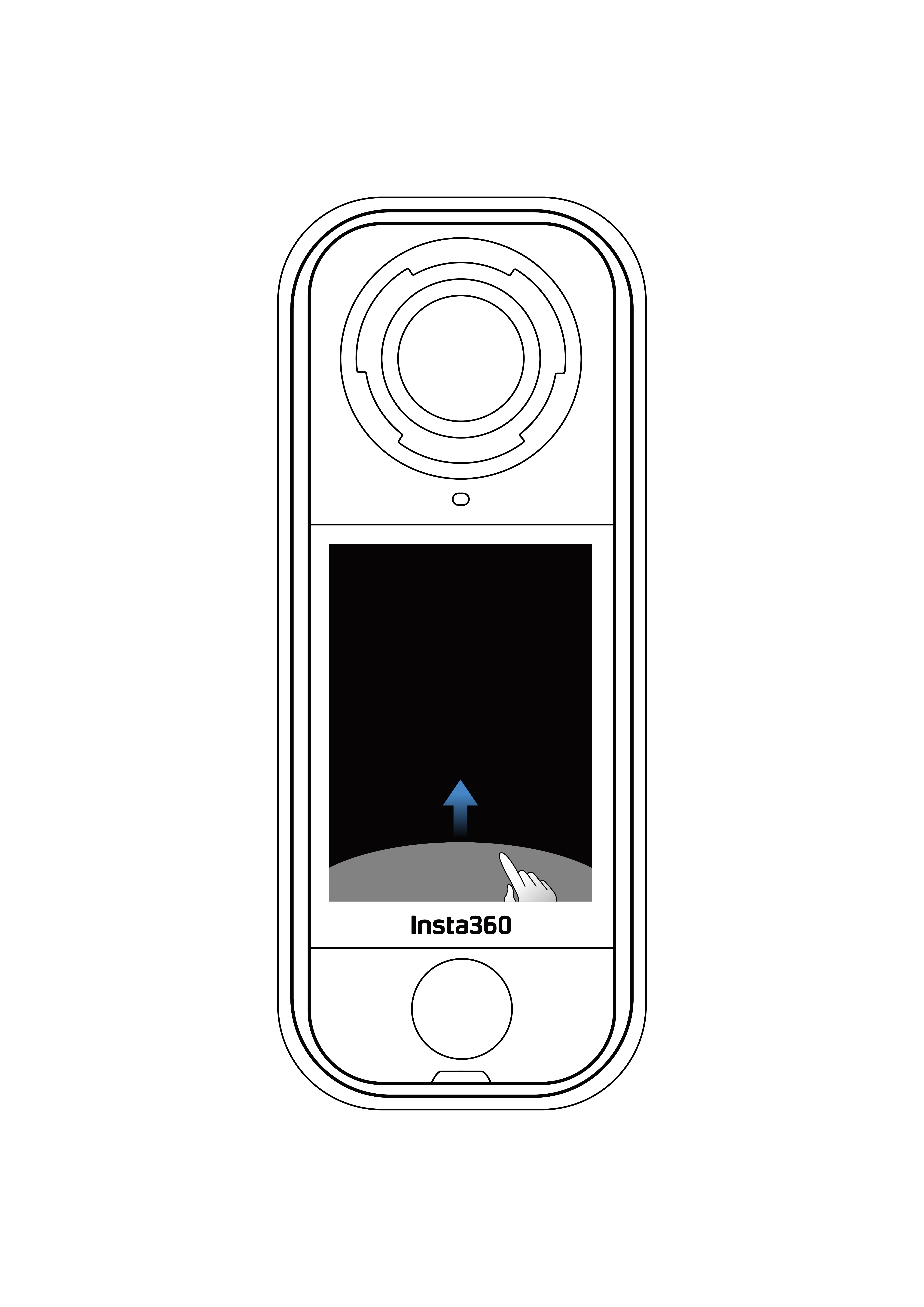 Swipe up from the bottom More shooting parameter settings. |
The example below shows the shooting interface in Single-Lens Mode recording in regular Video Mode.

Depending on the specific settings and status of the camera, icons may also be displayed at the top and left side of the touchscreen. Due to the limited space, not all icons may be fully displayed.
Tap the shooting mode icon and swipe left or right from the center of the screen to cycle through the shooting modes.
| Shooting Mode | Description |
|---|---|
| Video | Record 360 videos up to 8K30fps. |
| InstaFrame | Simultaneously record an auto-framed flat video and a 360 video. Gesture Control is not supported in this mode. |
| Timelapse | Shoot static timelapse videos. |
| TimeShift | Take a hyperlapse (sped-up) video while moving. |
| Loop Recording | Record continuously and save only the last fixed-length segment. |
| Road Mode | Loop recording within a certain storage space, overwriting the earliest recording when the space is full. |
| Starlapse | Shoot and store multiple photos and automatically combine Starlapse effects. |
| Burst Photo | Take multiple photos in a short space of time. |
| Interval | The camera automatically takes continuous photos at a specific time interval. |
| Photo | Take a single photo. |
For 360 cameras, the Insta360 stitching algorithm automatically combines the images from each fisheye lens to create a seamless 360 image. For the best stitching effect, stand facing one of the lenses while filming, rather than positioning yourself between the two lenses and have the other lens directly facing the subject.
| Shooting Mode | Description |
|---|---|
| Video | Record wide-angle videos from one lens up to 4K60fps. |
| FreeFrame Video | Apply FlowState Stabilization and Horizon Lock with adjustable aspect ratio in post via the app or Studio. |
| Me Mode | Record wide-angle videos with the Invisible Selfie Stick effect, keeping you in the center without any reframing. |
| Loop Recording | Record continuously and save only the last fixed-length segment. |
| Photo | Take a single photo. |
When shooting in 8K resolution, the camera uses a lot of processing power, so it's normal for the camera to warm up. You can try the following to reduce power consumption, extend battery life, and improve your shooting experience:
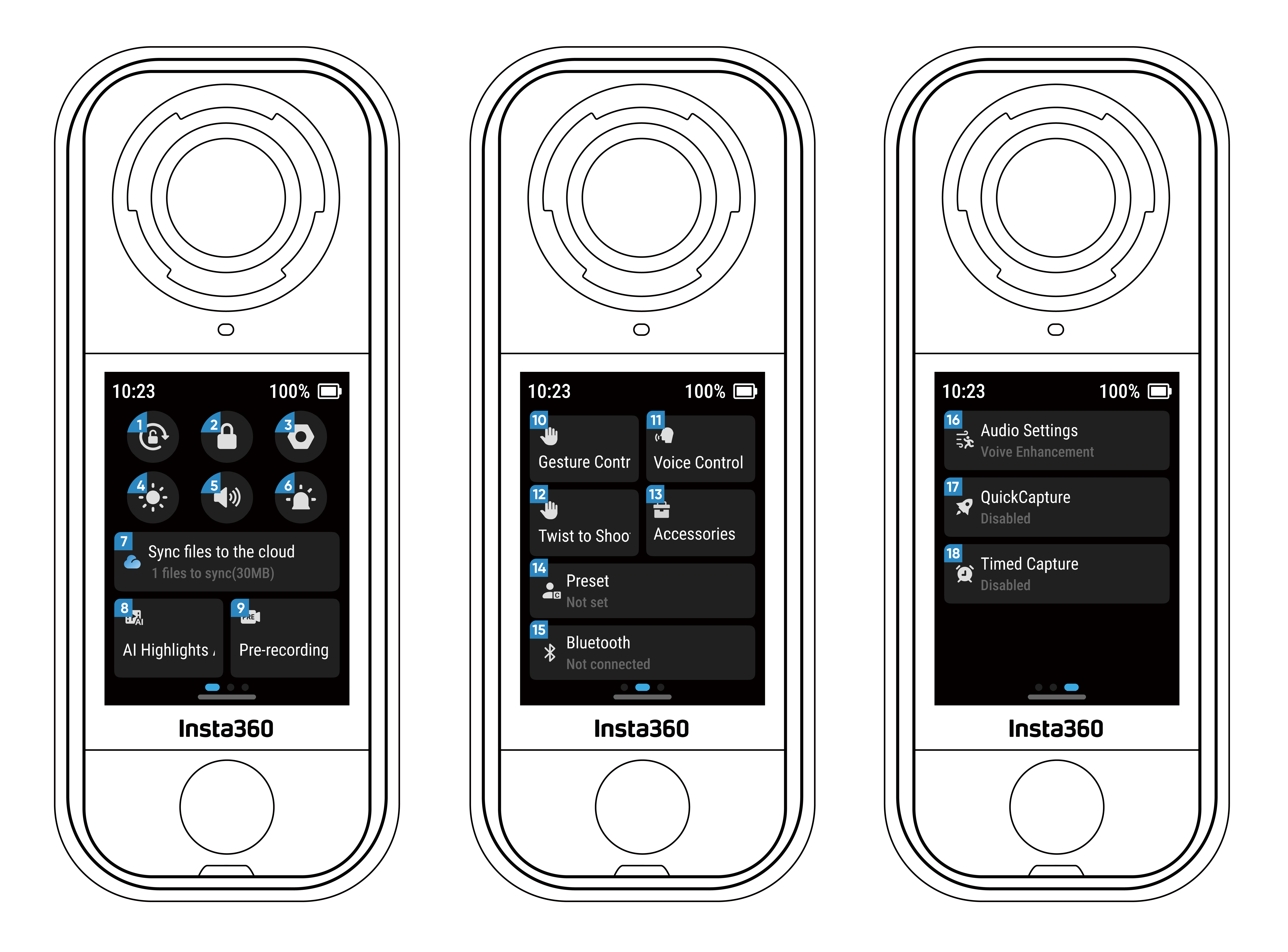
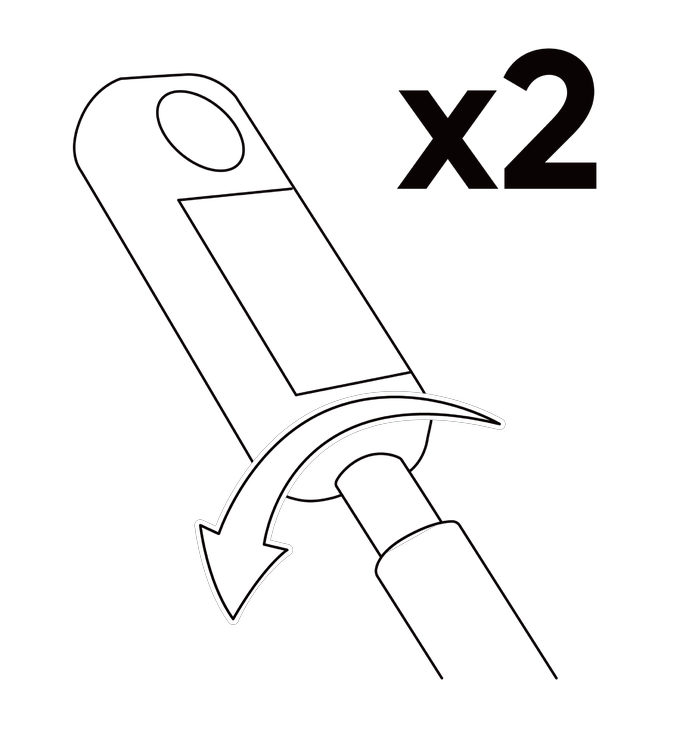
Swipe down on the touchscreen to view the Shortcut Menu.
Swipe up from the bottom of the touchscreen to view shooting specification settings.
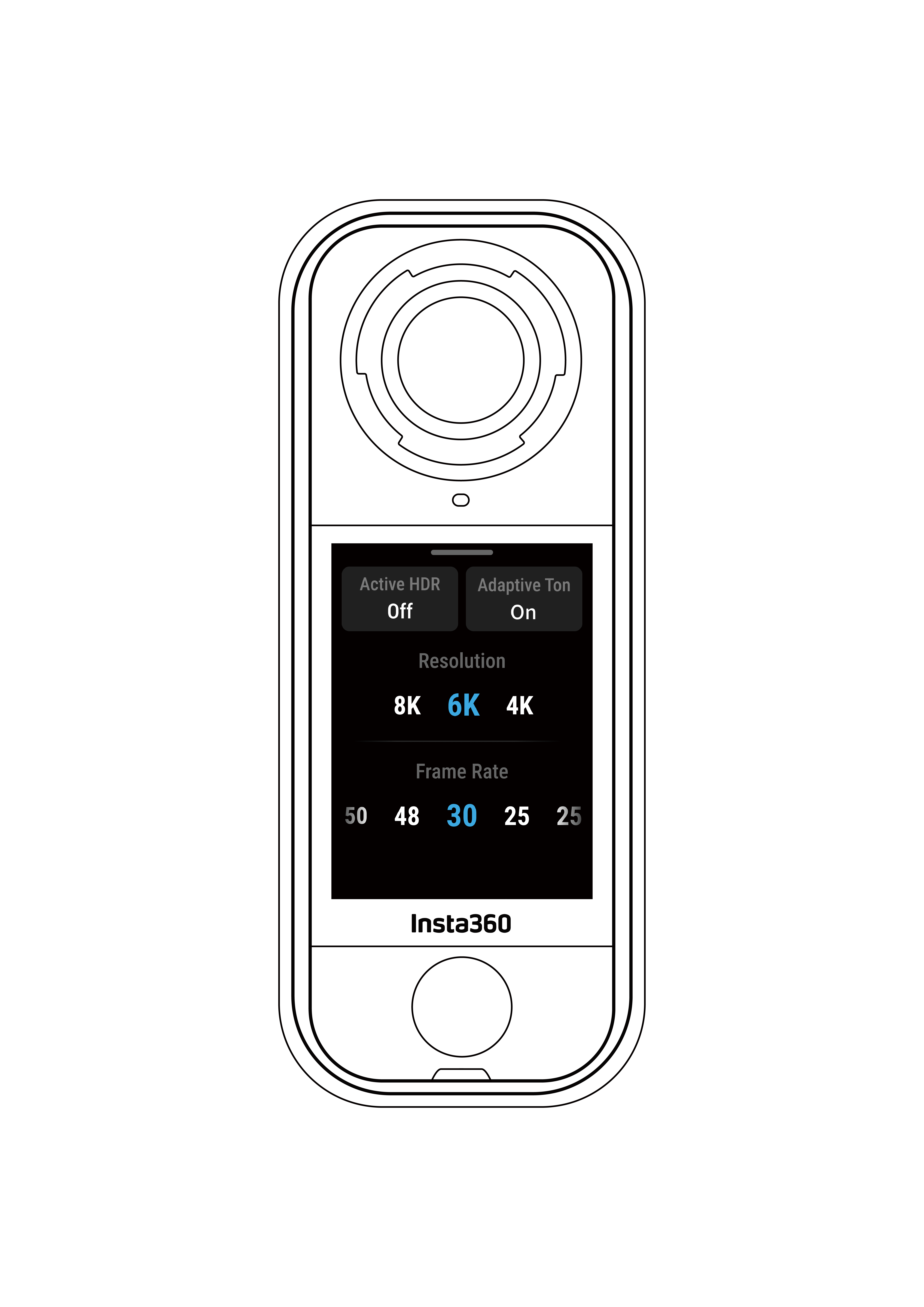
| Shooting Mode | Parameters |
|---|---|
| Video | Active HDR, AdaptiveTone*, Resolution, Frame Rate |
| InstaFrame | Flat Video Resolution, Ratio, 360 Resolution, Frame Rate |
| Timelapse | Resolution, Frame Rate, Interval |
| TimeShift | Resolution, Frame Rate, Speed |
| Loop Recording | Resolution, Frame Rate, Loop Duration |
| Road Mode | Loop Space, Power-off Charging, Time Watermark, Resolution, Frame Rate |
| Starlapse | Type, Resolution, Duration, Timer |
| Burst | Timer, Format, Resolution, Burst number/duration |
| Interval | Resolution, Duration, Interval, Format |
| Photo | HDR Photo, Format, Resolution, Timer |
*When AdaptiveTone is enabled, it can automatically optimize brightness and color from each lens for the best image quality.
| Shooting Mode | Parameters |
|---|---|
| Video | Ratio, Resolution, Frame Rate |
| FreeFrame Video | Ratio, Resolution, Frame Rate, Horizon Lock |
| Me Mode | Ratio, Resolution, Frame Rate |
| Loop Recording | Ratio, Resolution, Frame Rate, Loop Duration |
| Photo | Ratio, Resolution, Timer, Format |
Swipe left from the right edge of the touchscreen to see the shooting parameter settings.

The parameters supported for different shooting modes in panoramic and single-lens modes may vary. Please refer to the screen display for details.
| Shooting Mode | Parameters |
|---|---|
| Portrait Mode | Intelligently recognizes faces, brightens skin, softens textures, and preserves details. Ideal for selfies, group photos, or talking-head videos. |
| Shutter Speed | Controls the time it takes for light to enter the camera. The faster the shutter speed, the clearer the image. Make this higher for dynamic shots and lower for low light conditions. |
| Sensitivity (ISO) | Reflects how sensitive the sensor is to light. A higher sensitivity means the camera can capture more light for a brighter image. |
| Exposure Compensation Value (EV) | In Auto Mode, you can adjust the EV to help with overexposure or underexposure. The larger the value, the brighter the picture. |
| White Balance (WB) | Removes unrealistic colors and tones so colors are accurately captured in the image. A higher white balance produces warmer tones, lower results in cooler tones. |
| Jitter Blur Reduction | Improves motion blur and stabilization in low light environments. In extreme environments, the image will be darker and may have some flickering. |
| Filters | Add different color tones and effects. |
| Balanced Exposure | The screen will automatically equalize the exposure according to the environment. |
| Metering Mode | Face Priority prioritizes the face for brightness. Matrix ensures accurate exposure of the whole image. |
| Shooting Mode | Parameters | |
| Auto | Manual | |
| Video | Filters, Portrait Mode, EV, WB, Jitter Blur Reduction, Balanced Exposure | Filters, Portrait Mode, Shutter, ISO, WB |
| InstaFrame | Filters, EV, WB, Jitter Blur Reduction | |
| Timelapse | Filters, EV, WB, Jitter Blur Reduction, Balanced Exposure | Filters, Shutter, ISO, WB |
| TimeShift | Filters, EV, WB, Jitter Blur Reduction, Balanced Exposure | Filters, Shutter, ISO, WB |
| Loop Recording | Filters, EV, WB, Jitter Blur Reduction, Balanced Exposure | Filters, Shutter, ISO, WB |
| Road Mode | Filters, EV, WB, Jitter Blur Reduction, Balanced Exposure | Filters, Shutter, ISO, WB |
| Starlapse | EV, WB | Shutter, ISO, WB |
| Burst Photos | Portrait Mode, EV, WB | Portrait Mode, Shutter, ISO, WB |
| Interval | Portrait Mode, EV, WB | Portrait Mode, Shutter, ISO, WB |
| Photo | Portrait Mode, EV, WB | Portrait Mode, Shutter, ISO, WB |
| Shooting Mode | Parameters | |
| Auto | Manual | |
| Video | Filters, EV, WB, Metering Mode, Jitter Blur Reduction | Filters, Shutter, ISO, WB |
| FreeFrame Video | Filters, EV, WB, Metering Mode, Jitter Blur Reduction | Filters, Shutter, ISO, WB |
| Me Mode | Filters, EV, WB, Jitter Blur Reduction | Filters, Shutter, ISO, WB |
| Loop Recording | Filters, EV, WB, Metering Mode, Jitter Blur Reduction | Filters, Shutter, ISO, WB |
| Photo | EV, WB, Metering Mode | Shutter, ISO, WB |
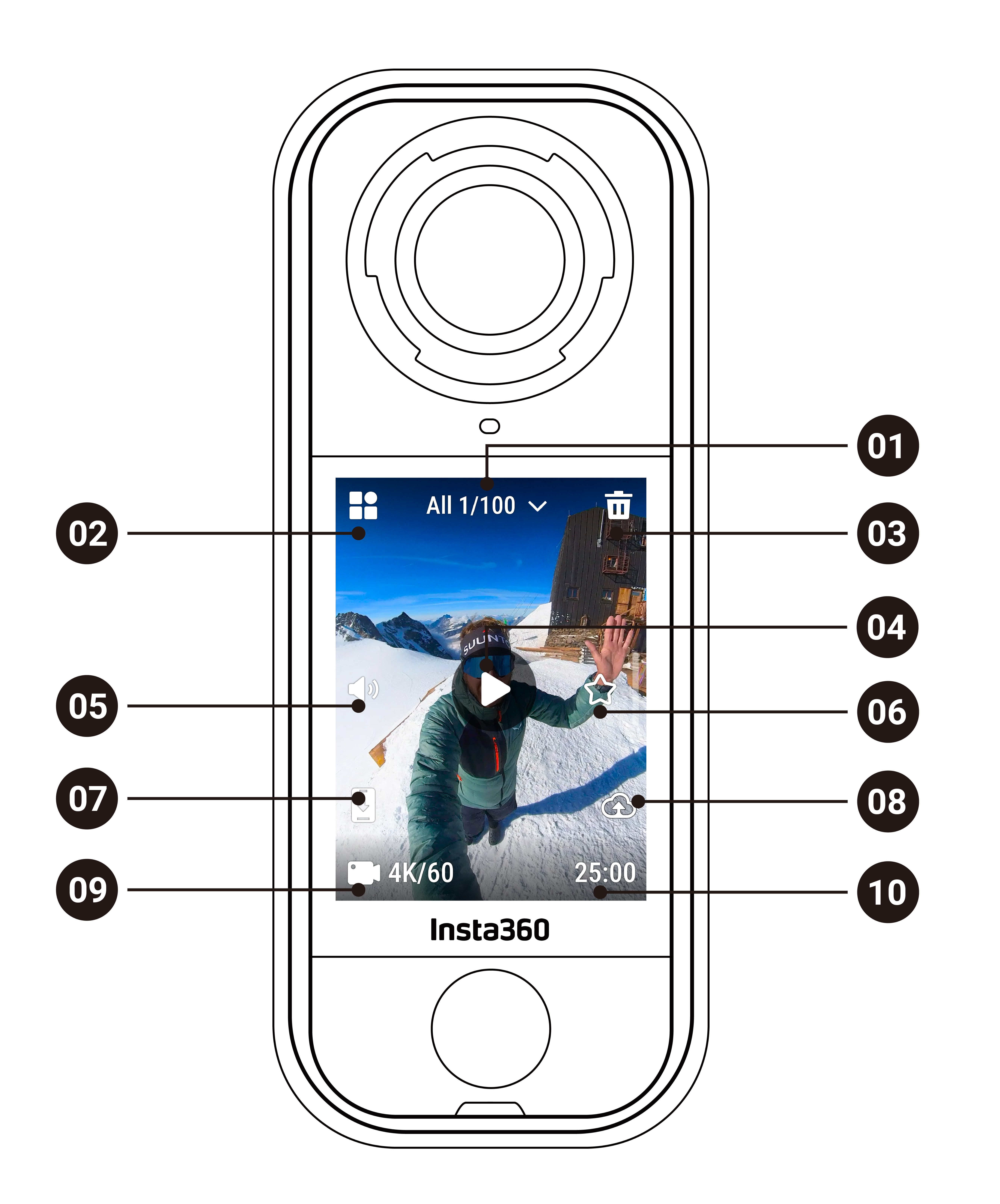
Swipe right from the left of the touchscreen to enter the Album page.
.svg)

