Installing Insta360 Wave Controller
By installing the Insta360 Wave Controller on your computer, you'll be able to:
- Control the device via a computer, such as starting recording and quickly adjusting speaker volume.
- Perform device-related settings via a computer, such as Wi-Fi settings and firmware upgrades.
How to Install
Method 1: Visit http://www.insta360.com/download/insta360-wave to download and install the software.
Method 2: Connect the Insta360 Wave to your computer using a USB-C cable, then enable USB Mode > File Transfer on the device to access and install the local client installation package.
First-Time Connection
- Connect the Insta360 Wave to your computer using a USB-C cable.
- Open Insta360 Wave Controller and log in to your Insta360 account.
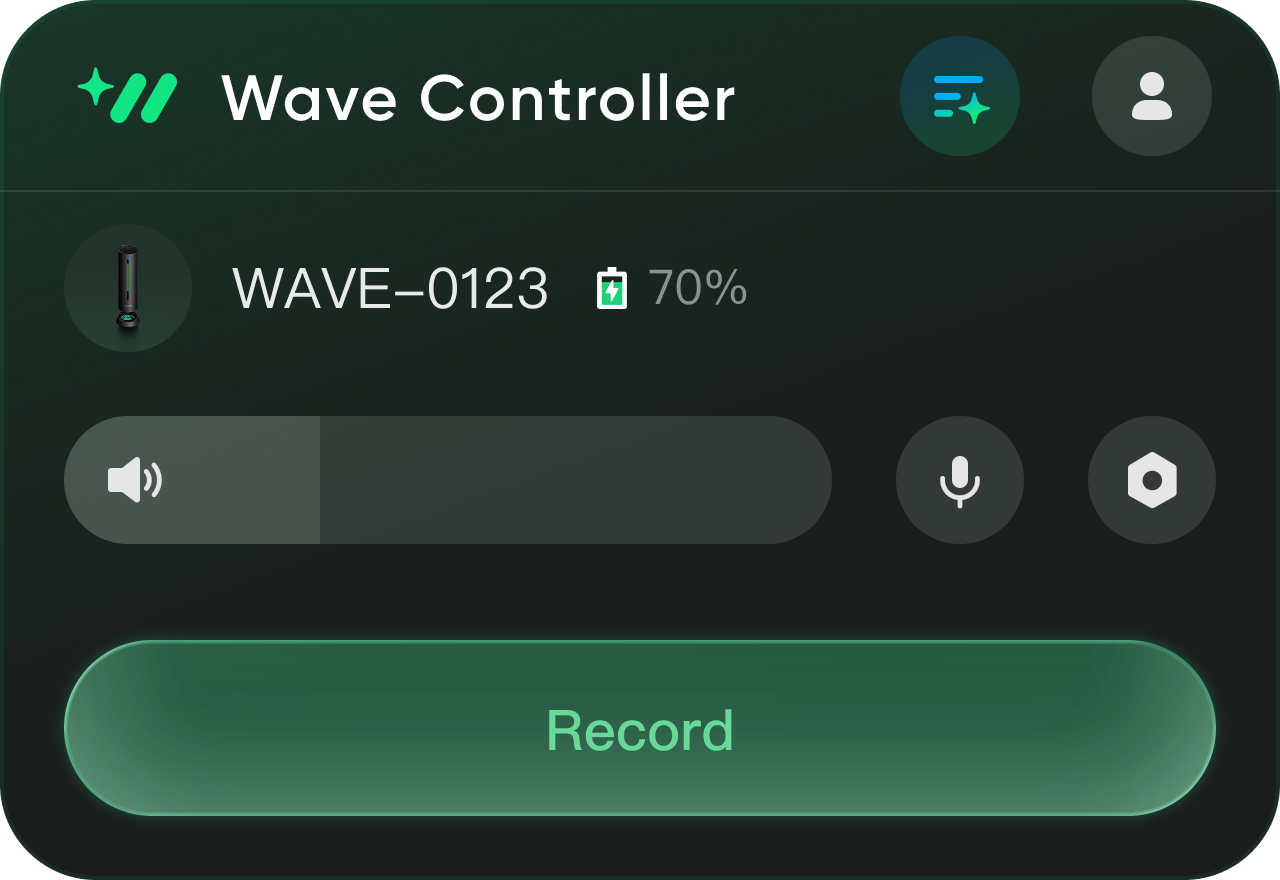
- The software will automatically detect the device. Confirm the correct device by checking the last five digits of the serial number shown below the device image, then pair it.
- After pairing, you can adjust volume, record audio, and perform other operations from your computer. When the device is connected to Wi-Fi and cloud sync is enabled, recordings will be automatically uploaded to the cloud after completion. You can access Insta360 InSight via the client to view AI summaries.
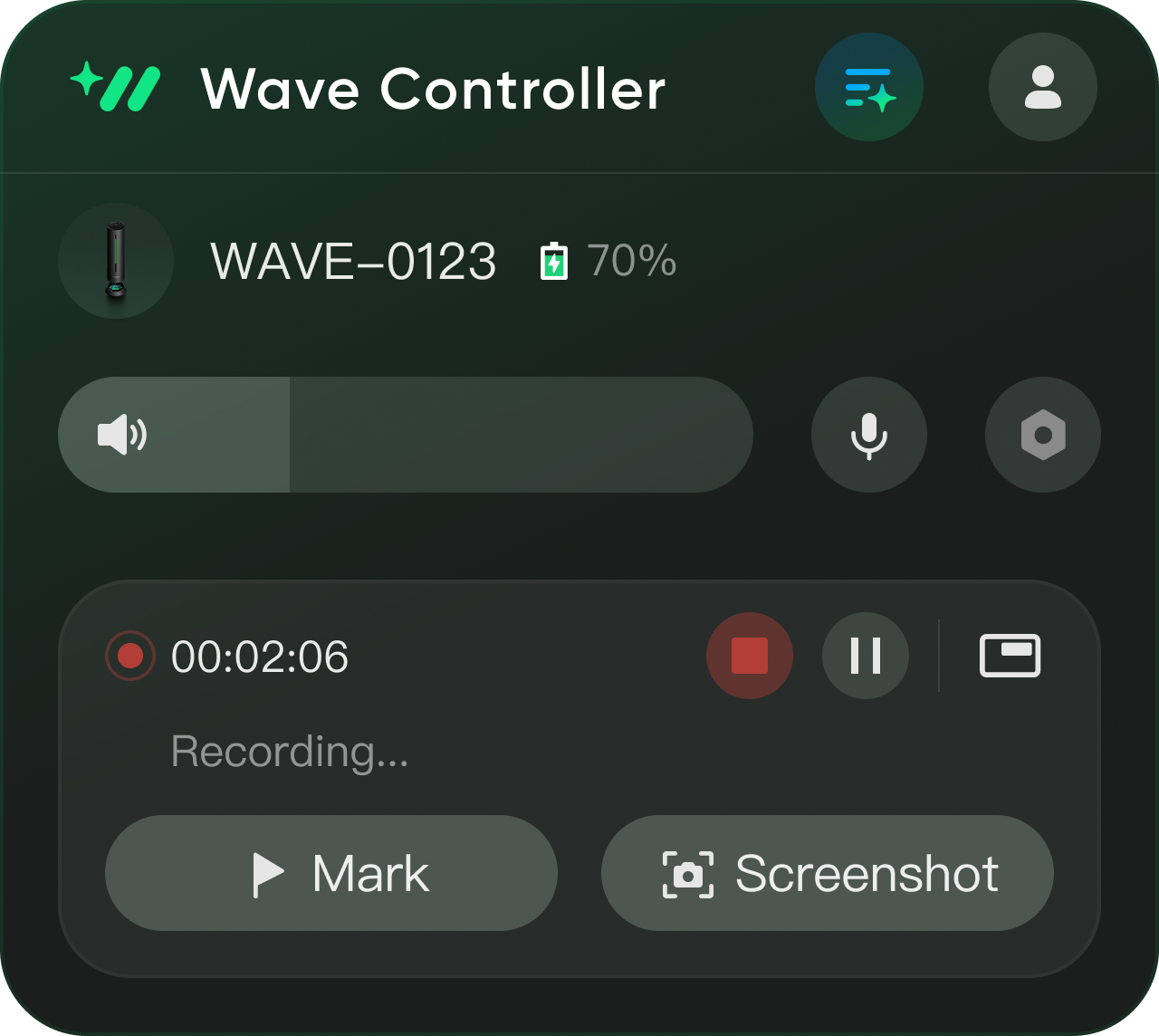
- During recording, you can use the mark and screenshot functions. Visit Insta360 InSight, find the audio file—marks and screenshot timestamps are shown on the audio progress bar, and screenshots appear on the transcription page. (This feature is available on the desktop client only.)


.svg)

