Using Insta360 InSight AI Features
After recording audio with the Insta360 Wave, you can use Insta360 InSight to view cloud recording files, convert them to text with one click, and generate meeting minutes.
Activation
- Connect to a computer using a USB-C cable.
- Download and install the desktop client software from the official website.
- Link your account to activate AI features.
After activation, go to "Settings > AI Features" to enable/disable "AI Transcription" auto-summarization, adjust transcription and summary settings, check or upgrade subscription plans, and manage cloud space.
Tip: For users who are unable to install the client software due to enterprise policy restrictions, support for direct activation by scanning a QR code with a smartphone will be available via a future OTA update. Please stay tuned for updates.
Accessing InSight
To access Insta360 InSight on a computer, you can click the InSight icon on the client or visit the website https://insight.insta360.com directly.
Workflow
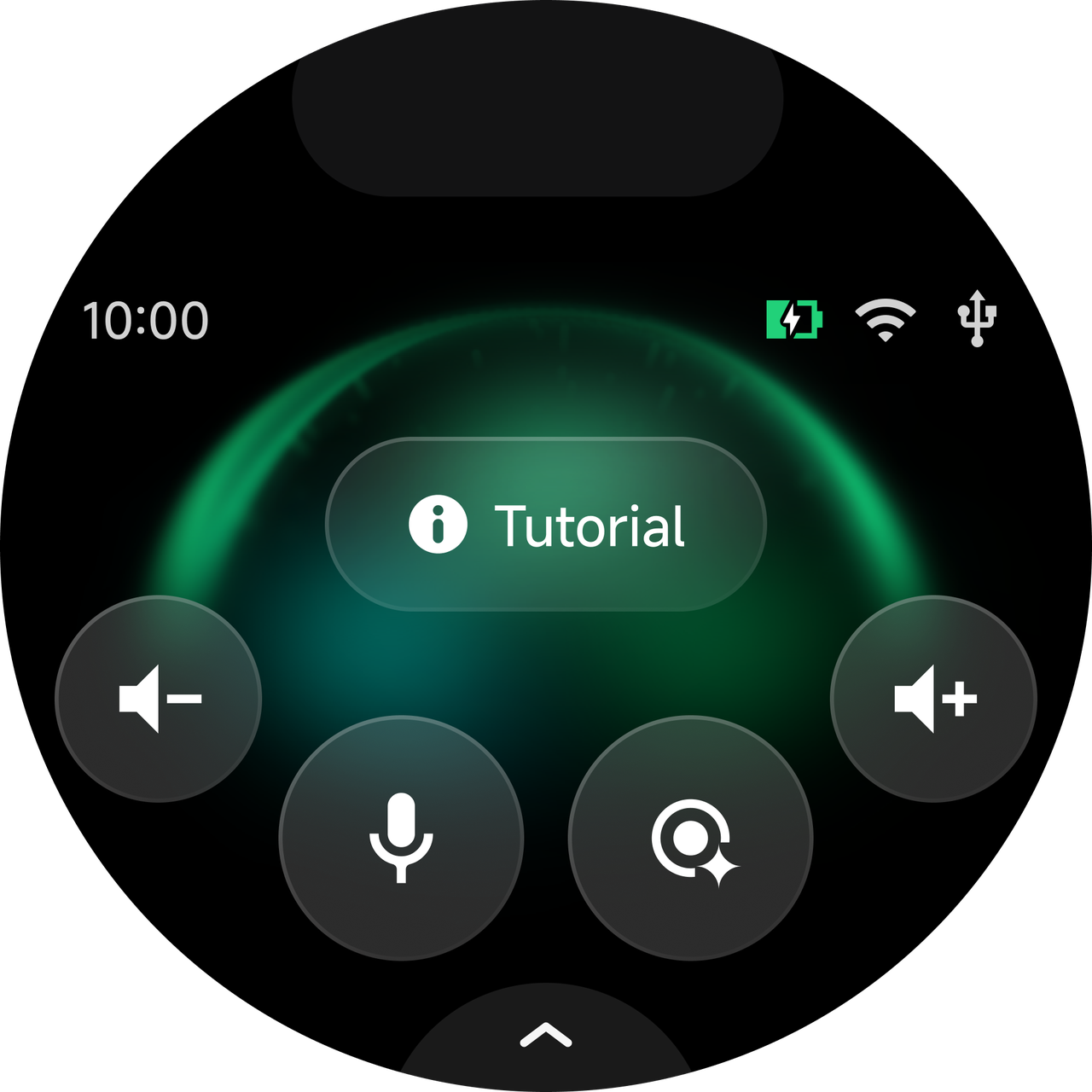
- Enable the "AI Transcription" function in the device's "Settings > AI Features". Once enabled, the AI transcription entry icon will be displayed on the home screen.
- Enable "Auto Summary" under "Transcription Settings" (located below "AI Transcription"). Once enabled, a meeting summary will be automatically generated after the AI recording ends when connected to the internet.
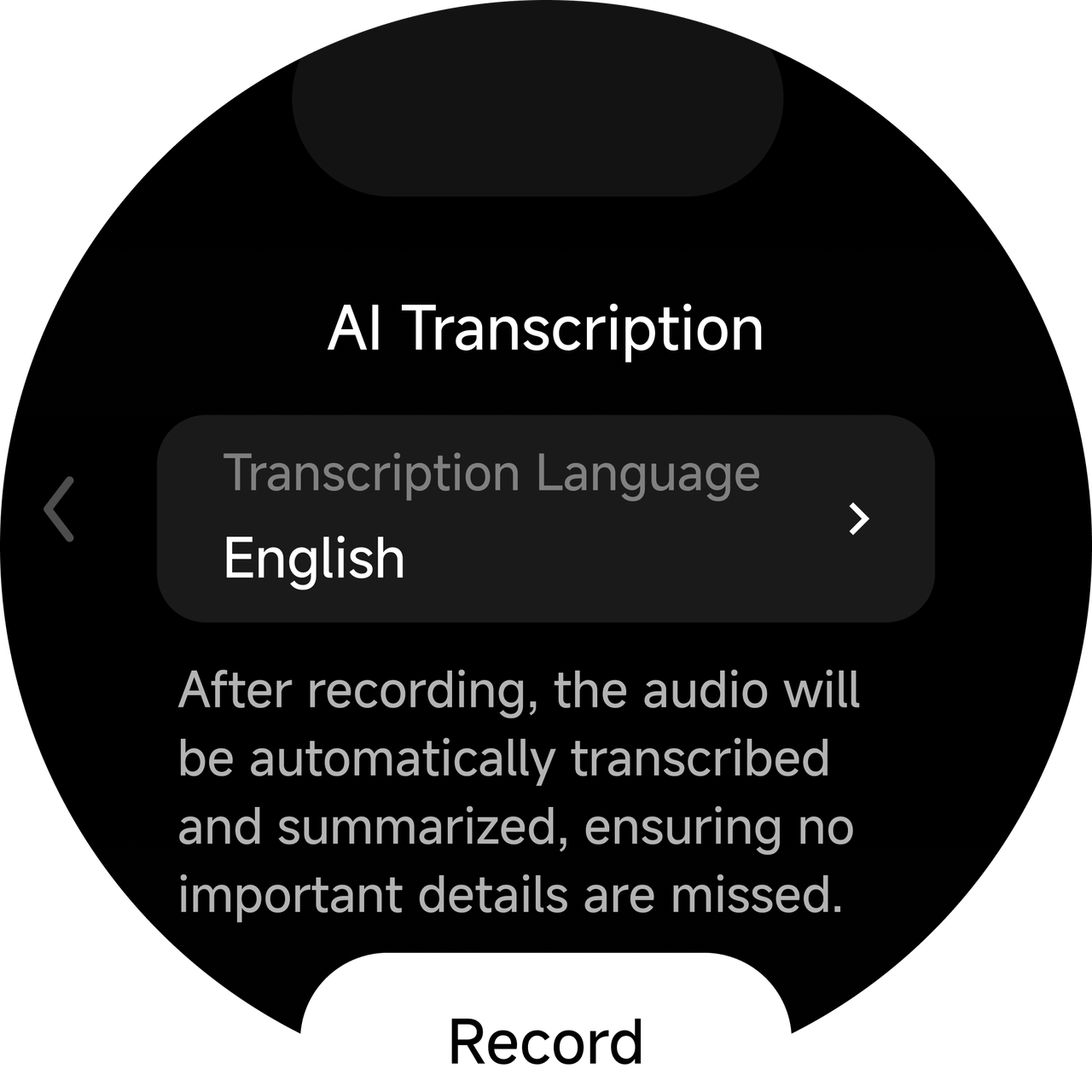
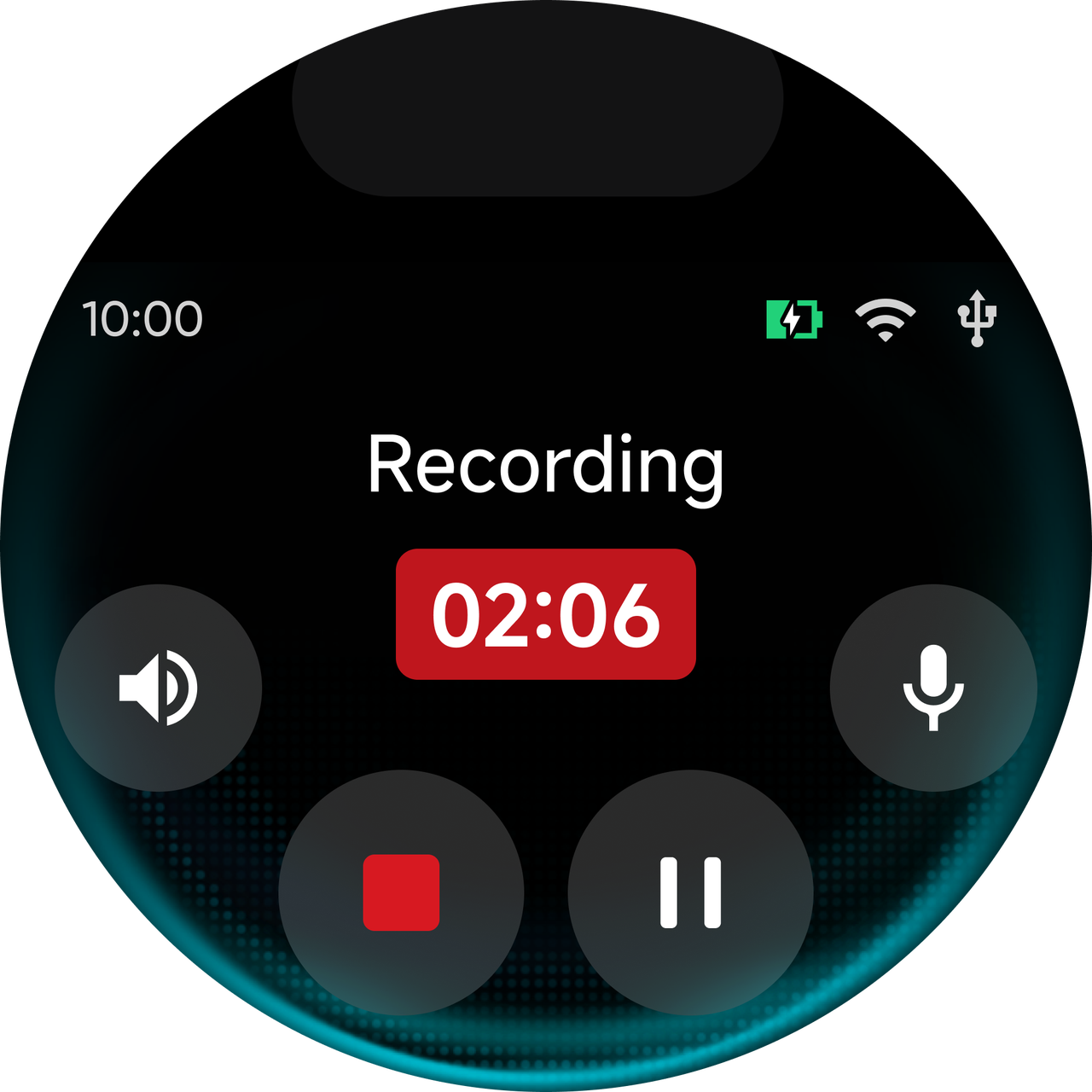
- On the home screen, tap the AI transcription entry icon, select the transcription language, and then tap "Record" to enter the recording page.
- After the device recording ends, go to the device folder to select and view the file. Tap the "AI Summary" button and scan the QR code displayed on the device screen to view the recording, smart minutes, and text transcripts.
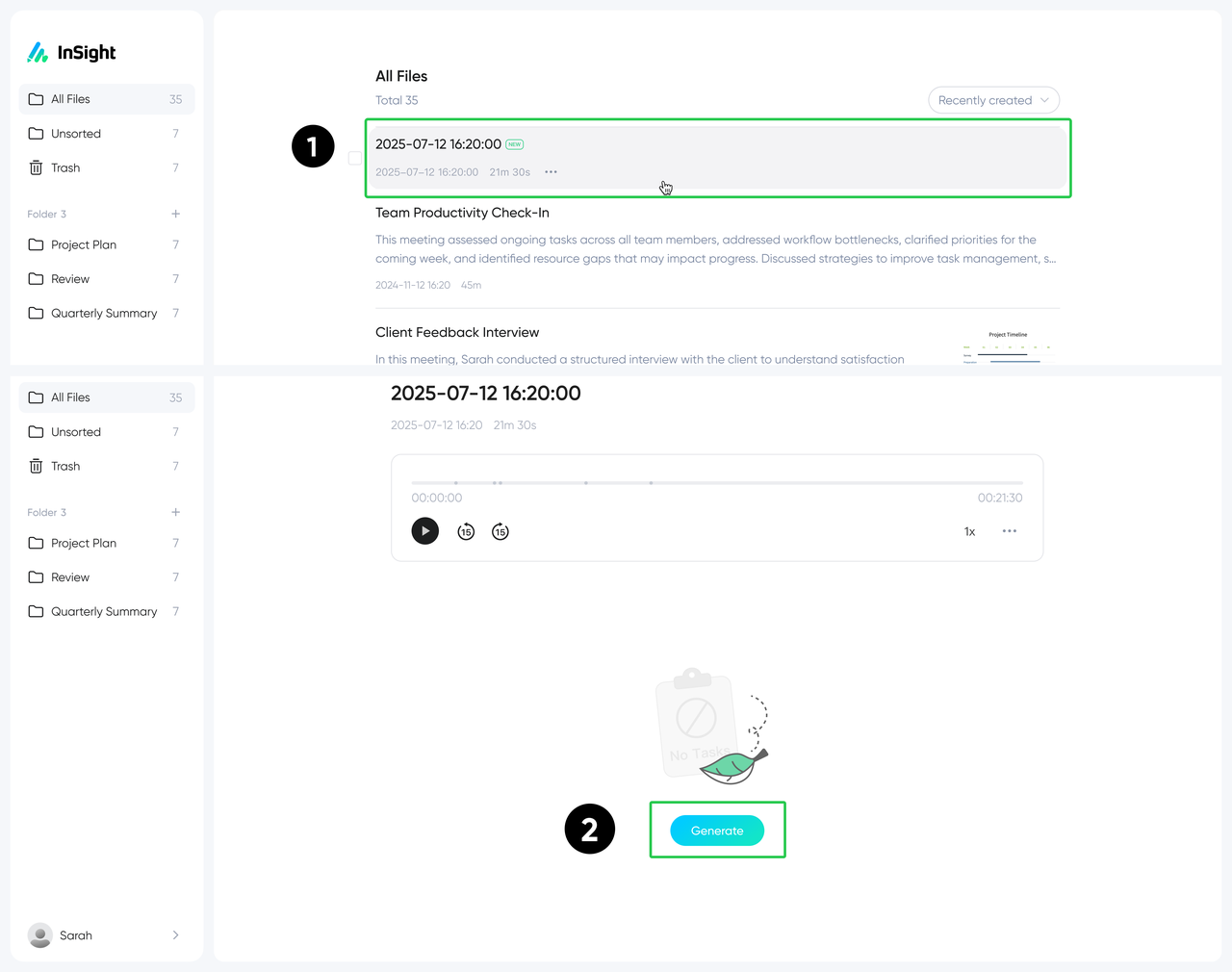
- Go to the settings page "AI Features" - "Cloud Management" and enable "Cloud Sync". Once enabled, audio will be automatically uploaded to the cloud after recording when connected to the internet. You can view the automatically uploaded audio on the InSight web page, and if needed, click "Generate" on the InSight web page to generate a summary.
If you do not requires AI transcriptions, you can disable this via "AI Transcription" in the settings.


.svg)

