Transferring Media Files
Transferring Media Files
After shooting, you can transfer files from the camera to your phone or computer in various ways for easy editing and sharing.
Transferring to a Phone
Via the Insta360 App
- Open the Insta360 app and connect the camera (ensure Wi-Fi and Bluetooth are turned on).
- Go to the Album page in the app and select the files you want to transfer.
- Tap export or download to save them to your phone's system album or the app's media gallery.
Tap & Transfer
- Turn on NFC on your phone. (Note: The NFC detection area varies by device; please check your phone before use.)
- Place your phone's NFC detection area close to the camera's NFC area below the screen.
- Tap the pop-up notification to open the Insta360 app.
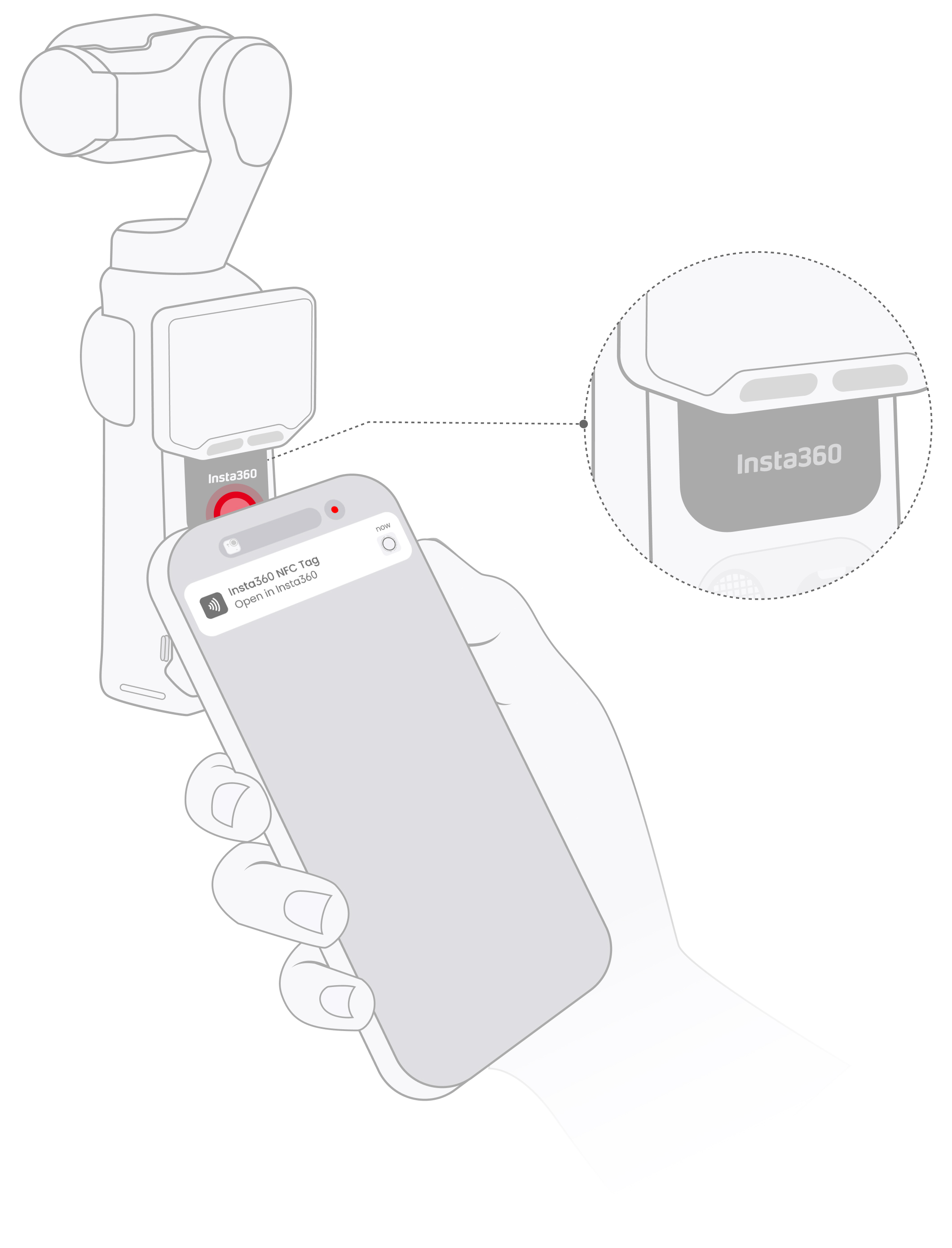
**Note:** Feature compatibility and the location of the phone's NFC area vary depending on the phone model.
Via USB-C Cable
- Connect the camera to your phone using a USB-C cable.
- A connection mode menu will pop up on the camera screen; select File Transfer.
- Locate the camera storage in your phone's file manager, then copy the desired files to your phone.
Note: For iPhone, this feature only supports iPhone 15 and later models equipped with a USB-C port.
Transferring to a Computer
Via USB-C Cable
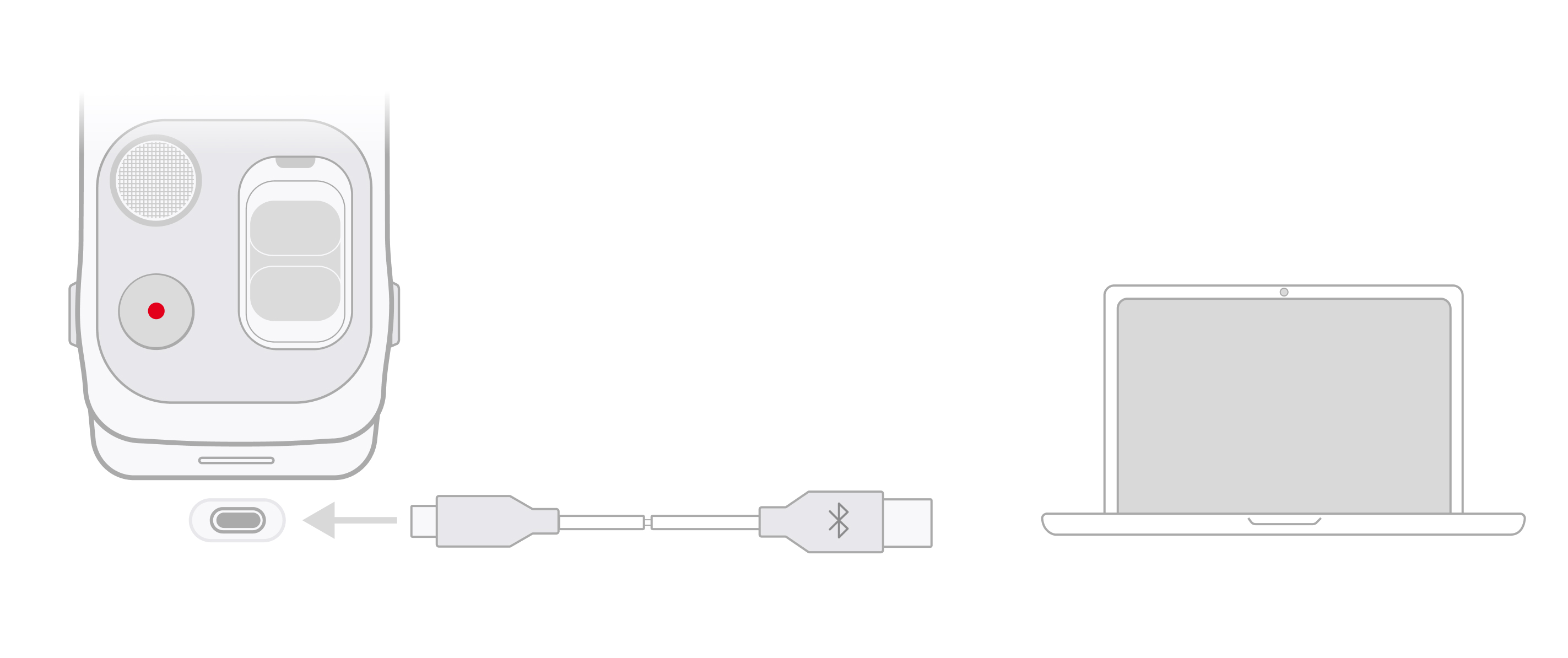
- Connect the camera directly to your computer using a USB-C cable.
- A mode selection menu will automatically pop up on the camera screen; select File Transfer.
- The computer will recognize the camera as a removable storage device.
- Open the camera folder and copy the desired photo and video files to your computer's local hard drive.


.svg)