Preparations: Installation and Basic Settings
Install Client Software
Please ensure that the client software installation and setup have been completed.
Basic Client Settings
After installation, please configure the following settings for a better live streaming experience:
- Connect the Camera: Connect the camera to your computer via a USB cable. Open the client, and the software should automatically recognize the device.
- Turn Off Preview (Optional): Click the camera icon in the lower-left corner of the software to disable the live preview and save system resources.
- Enable Toolbar Mode: Click the icon in the top-right corner of the software to enable "Toolbar Mode." This mode provides a compact floating control bar, allowing you to quickly adjust camera settings during a live stream without switching windows.

Vertical Live Streaming Settings
For vertical live streaming, it is recommended to follow these steps for the best compatibility:
- Preferred Option: Rotate the Canvas in Streaming/Broadcasting Software
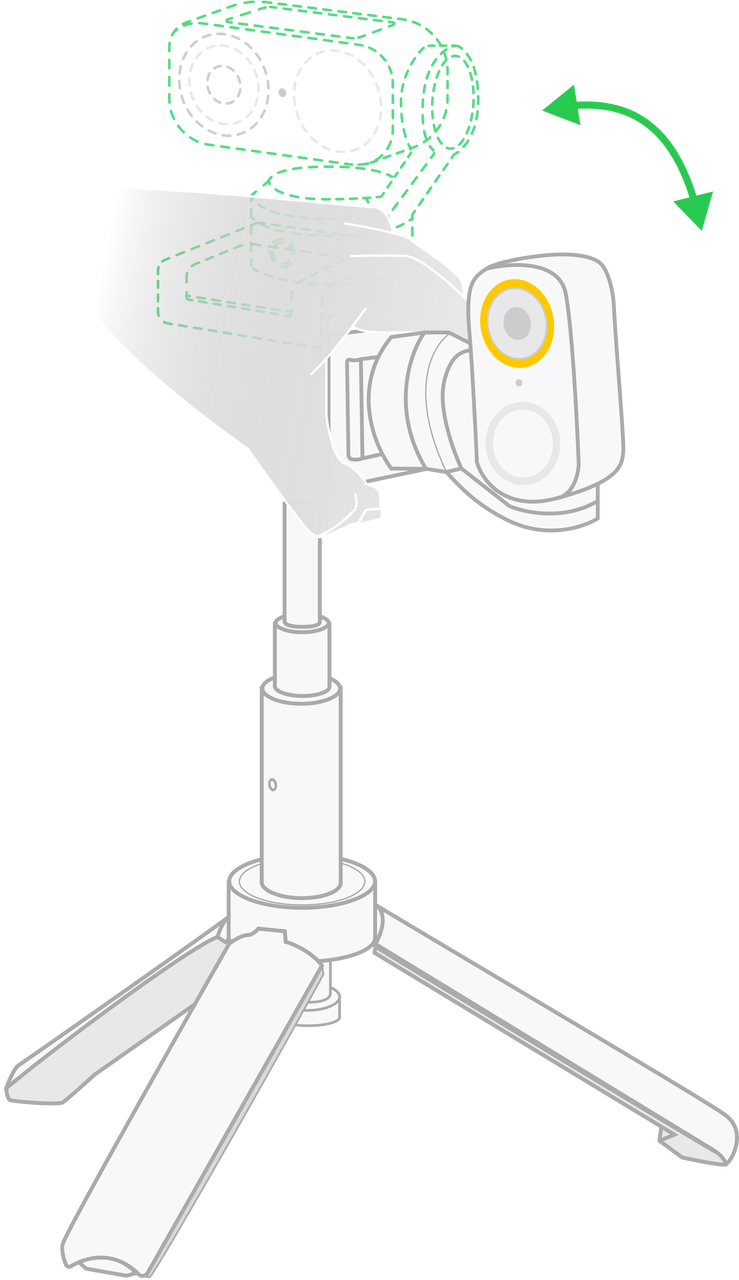
- Physical Preparation: Use a tripod to position the device vertically.
- Software Settings: In your streaming software (e.g., OBS, StreamLabs), rotate the entire live canvas or the camera source to vertical (typically a 9:16 aspect ratio).
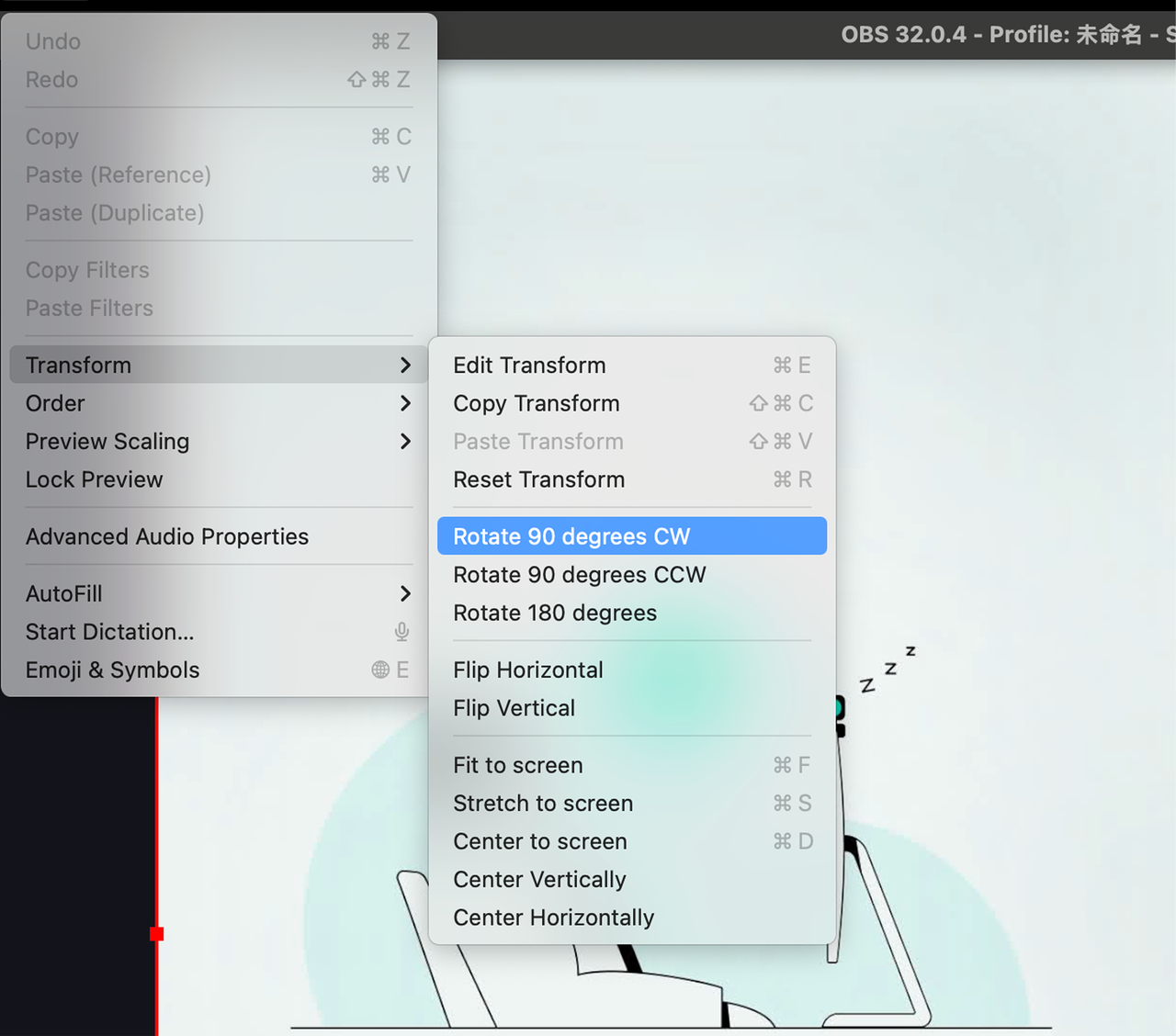
- Client Settings: On a Mac computer, you can keep the client preview enabled at the same time. On a Windows computer, please turn off the client preview; otherwise, OBS may fail to properly obtain the camera video stream due to resource usage.
- Alternative Option: Switch Resolution in the Client
This method is primarily used for scenarios where third-party software (such as video conferencing apps) needs to directly recognize and preview a vertical frame.
- Physical Preparation: Use a tripod to position the device vertically.
- Client Settings: Click the Settings button in the top-right corner of the client, go to "Camera" > "Compatibility Settings," and enable "Portrait Resolution."
- Once enabled, the camera's output stream will be in a native vertical format. You can see the correct vertical preview in other software without needing to rotate the canvas manually.