Advanced Application — Green Screen Keying Live Stream
1. Setting up Keying in the Client:
- Open the client and go to the "Effects" tab.
- In "Background"settings, select a virtual background or upload an image/video.
- Check "Green screen available", the system will automatically recognize the backdrop color in the environment and optimize the keying parameters to quickly achieve an initial chroma key effect.
If you are not satisfied with the result or if the environment changes, you can choose to:
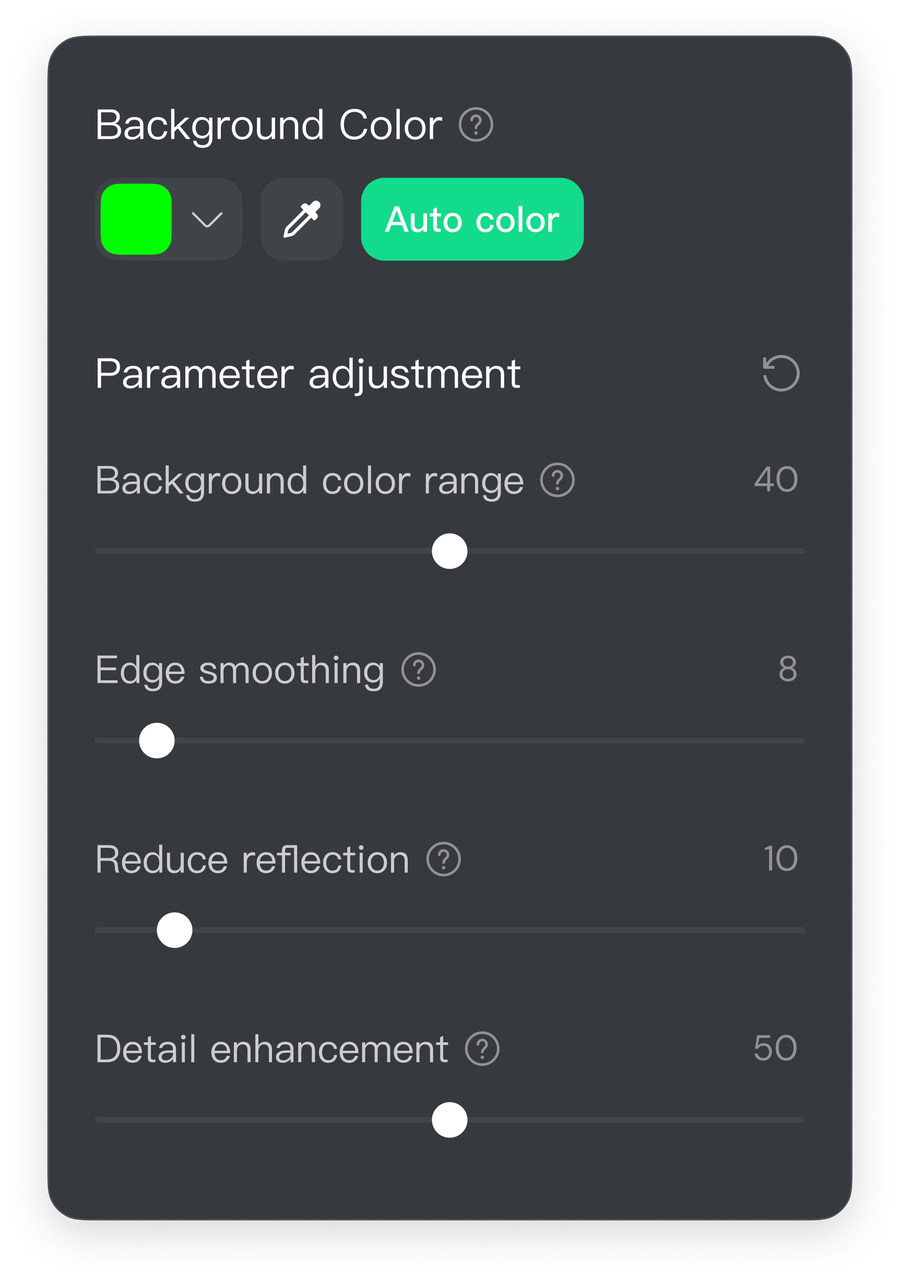
- Click "Auto Color" for one-click keying, or use the eyedropper tool to manually sample a color within the video frame for keying;
- Use the sliders to fine-tune the details until the keyed edges are clean and the subject appears natural:
- Background Color: Adjust the range of background removal during keying to display the subject more completely.
- Edge Smoothing: Optimize the transition between the subject and the background, making the edges appear more natural.
- Reduce Reflection: Minimize the impact of background lighting on the subject, making the subject’s colors more pure.
- Detail Enhancement: Enhance details such as hair and clothing to make the subject appear more realistic and natural.
2. Selecting the Signal Source in Streaming Software:
- When adding a camera to your streaming software, select "Insta360 Virtual Camera."
3. Real-time Synchronization:
- Any adjustments made in the client—such as toggling AI Tracking, changing Beautify & Makeup intensity, adjusting image parameters (brightness, contrast, etc.), or switching virtual backgrounds and filters—will be synced to the streaming software's preview in real time.
Tips:
- Use the "Auto color" function to quickly achieve ideal keying results and reduce manual adjustments.
- It is recommended to use green or blue screens for the best keying results.
- Ensure the screen is flat and wrinkle-free, and that the lighting is as even as possible.
- Maintaining a distance (recommended ≥1 meter) between the person and the green screen can effectively reduce color spill.
FAQ
If I restart my computer and use streaming software without opening the client, will the camera maintain the previously set audio control mode by default?
In non-vertical 4K high-resolution modes, the camera will maintain the last set audio mode by default even if the computer is restarted and the client is not open.
Can I use the microphone separately without using the camera?
Yes, the microphone can be used independently. For example, in a Teams meeting, you can turn off the camera and use the Link series microphone alone.


.svg)

