Download and Installation

  • Download: Please visit the Download Center on the official Insta360 website.

  • Installation: After downloading the "Insta360 Link Controller" software, follow the prompts to complete the installation.

  • Virtual Camera Settings (Important): To use advanced features such as Smart Whiteboard, Virtual Background, and Beautify, you must select "Insta360 Virtual Camera" as the video source in your live streaming or conferencing software. The setup methods are as follows:
    • Windows: Click the virtual camera icon within the Link Controller software and follow the prompts to complete the installation.
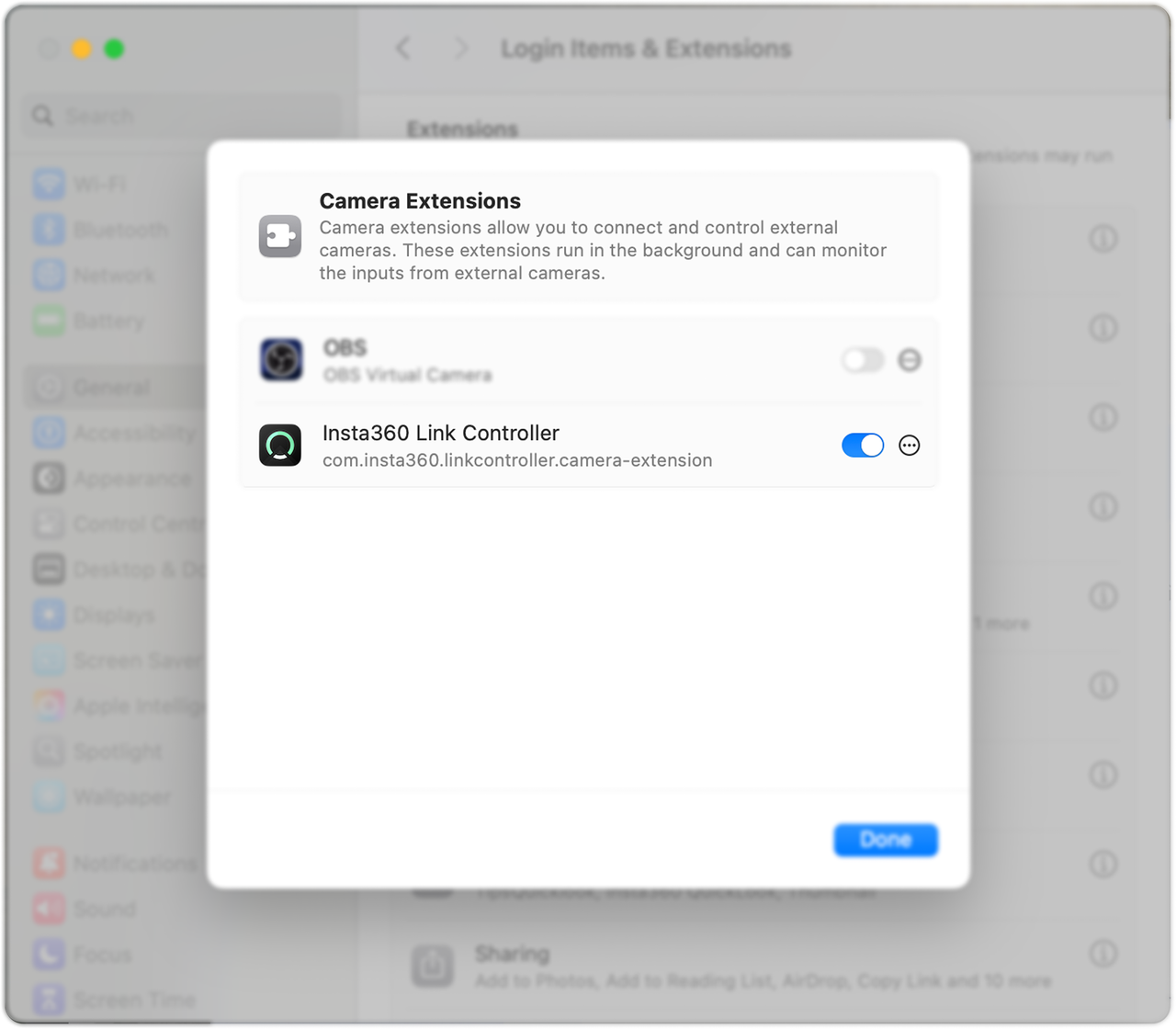
    • macOS: For first-time use, follow the system prompts to go to "System Settings" > "Privacy & Security" to allow the relevant camera extension permissions, then restart the client. If your macOS version is 15.0.1 or later, go to "System Settings" > "General" > "Login Items & Extensions" > "Camera Extensions", enable the client permission, and restart the client for the feature to take effect.

insta360

insta360
Online Chat
Office Hours: 24/7
Start Chat

