Online Chat
Office Hours: 24/7
Start Chat


AI Tracking and Auto Framing automatically identify and lock onto subjects in the frame. As you move, the camera uses gimbal rotation and smart zoom to track you continuously, ensuring you remain centered and providing an optimal perspective for video conferences, online classes, and live streaming. You can customize tracking zones, no-tracking zones, tracking speed, and composition within the client.
Link 2 Pro: Long-press the directional axis in the client to control gimbal movement; click the buttons for digital zoom.
Link 2C Pro: Use the buttons for digital zoom; after zooming in, you can drag the frame to adjust the composition.
Gesture Recognition: Quickly activate this feature using the gestures described in the "First Use" chapter.
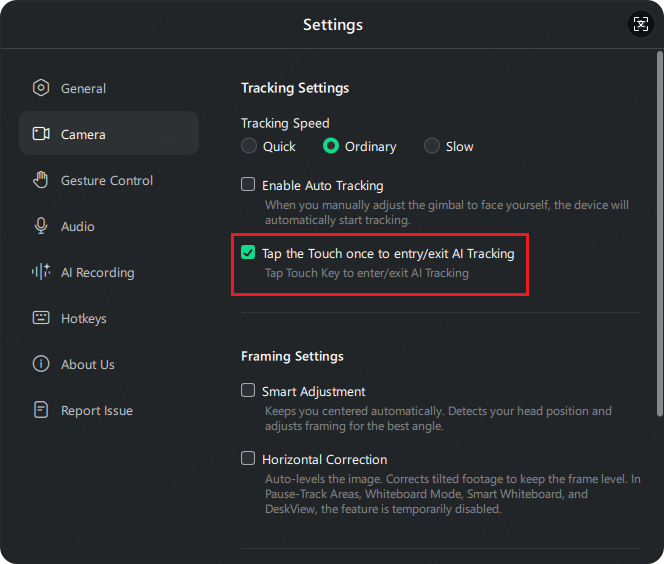
Touch Key (Link 2 Pro Only): Single-tap the Touch Button on the camera to quickly enable or disable AI Tracking. Ensure that "Tap /Touch once to activate Al Tracking" feature is turned on under "Settings" > "Camera".
| Link 2 Pro | Link 2C Pro |
 |
 |
Tips:
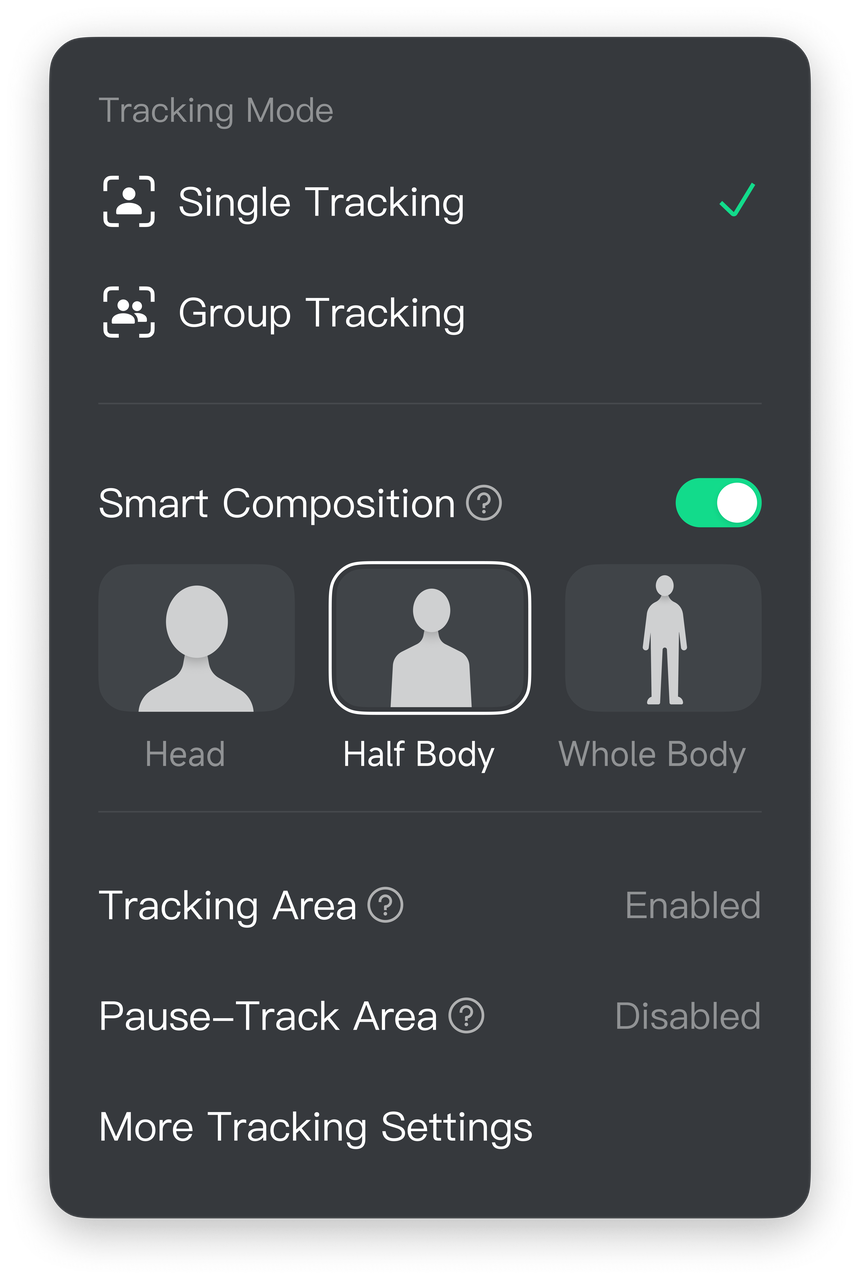
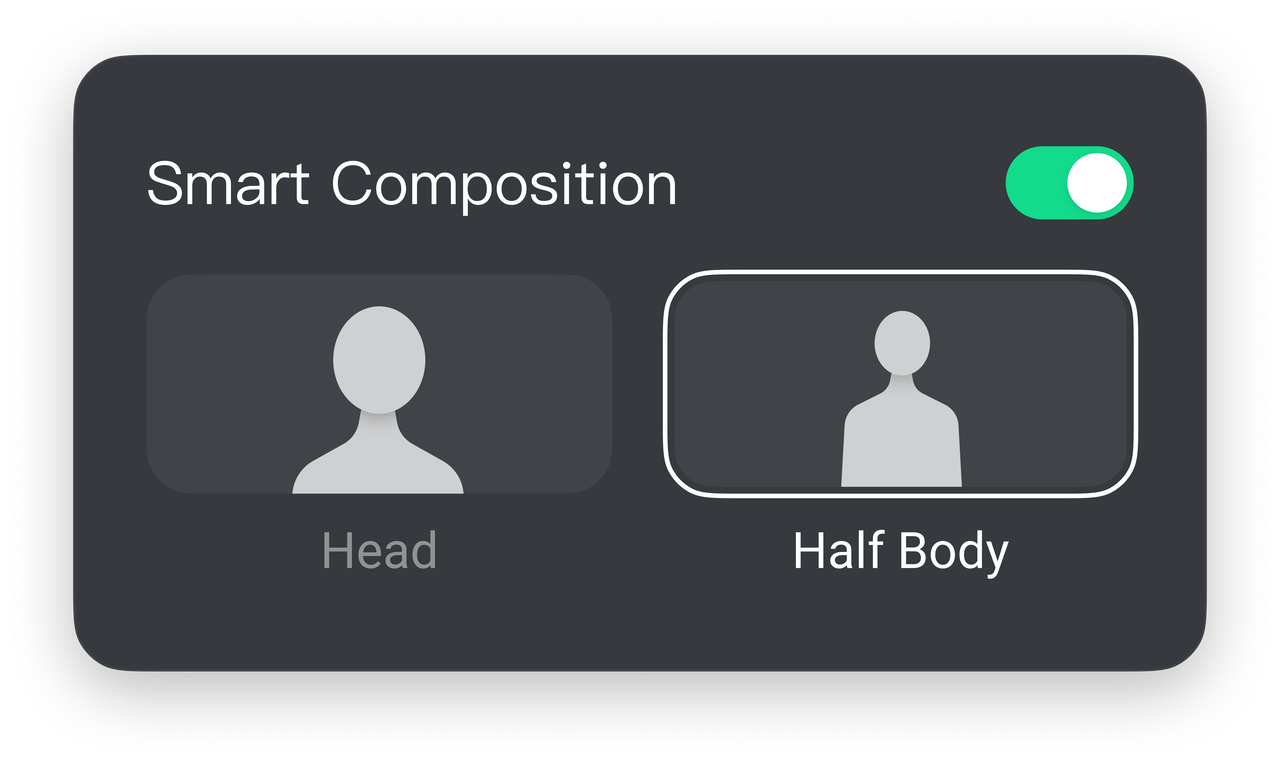
Once enabled, you can choose between Head, Half Body, or Whole Body. This feature only takes effect when tracking is active.
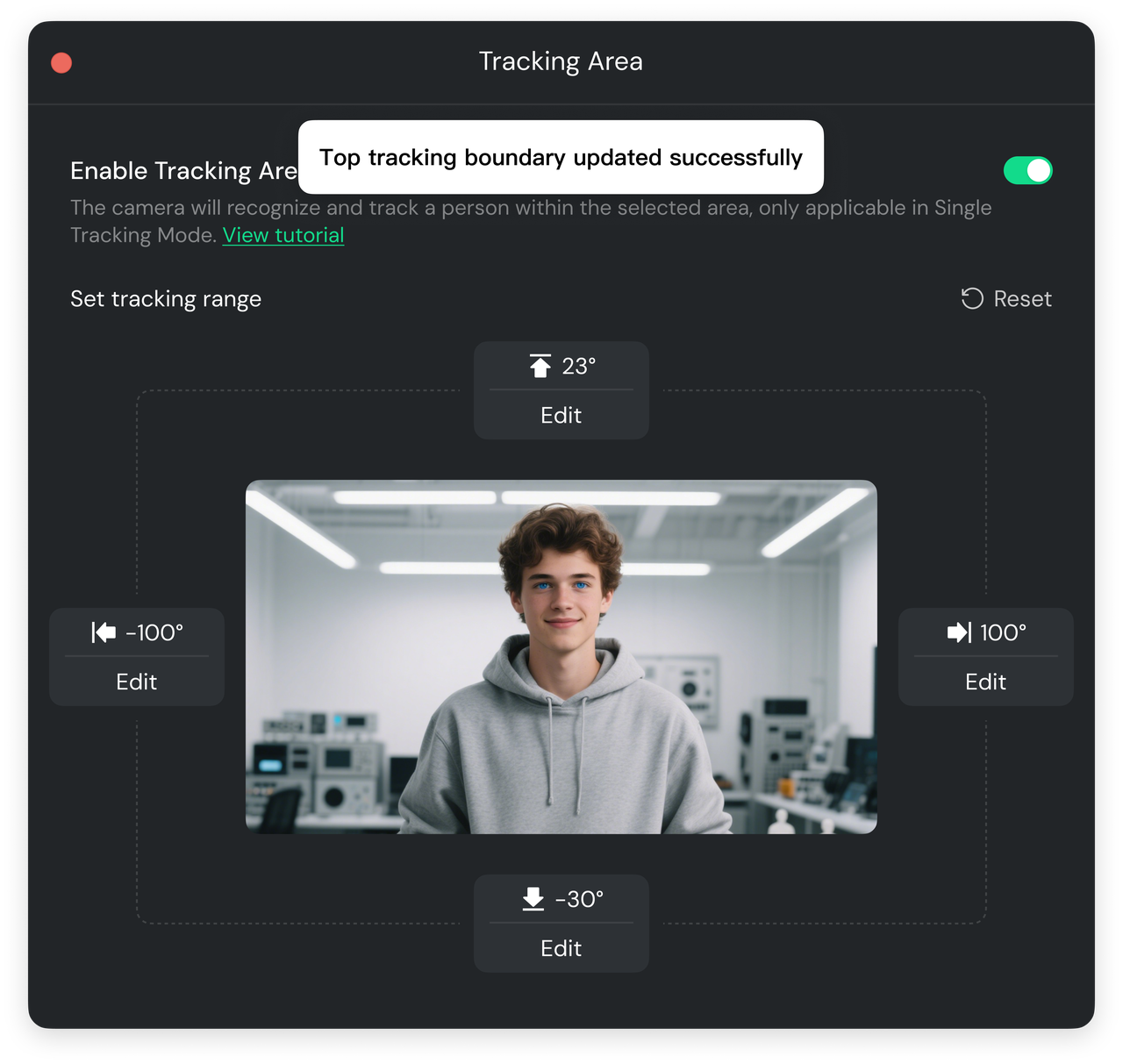
Once enabled, the camera will only track within the specified area, making it easy to protect your privacy.
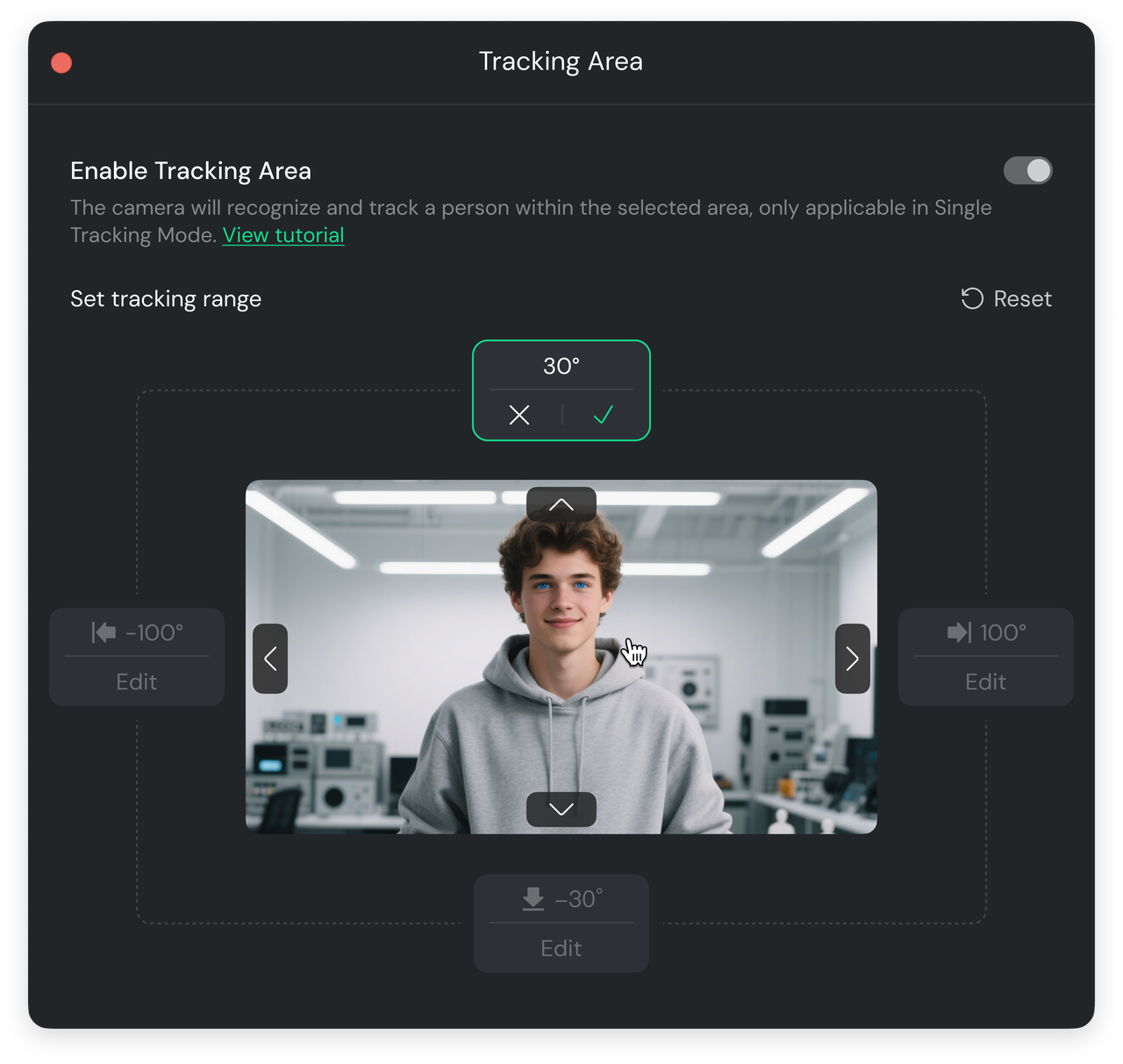
Only one boundary angle can be edited at a time. After clicking "✓" to save, you can adjust the next boundary angle value. You can adjust the boundary angles for the "Top, Bottom, Left, and Right" directions as needed. Once the boundary angle adjustments are complete, the tracking range will be restricted to this area.
This feature allows you to set specific areas within the frame. When the tracked subject enters these areas, the camera will stop tracking and keep the lens steady. This is suitable for scenarios requiring a fixed frame, such as product demonstrations or presenting in front of a whiteboard.
Requirement: Only applicable to Single-Person Tracking Mode.
Setup Method:
You can adjust tracking speed, enable/disable Auto Tracking (the device starts tracking automatically when the camera is facing you), framing settings (Smart Adjustment, Horizontal Correction), compatibility settings (Portrait Resolution, Enable Low Resolution), etc.
Tips:
.svg)

