Using the Camera via OBS Studio
OBS is a professional live streaming and recording software that supports high levels of customization.
Adding a Physical or Virtual Camera
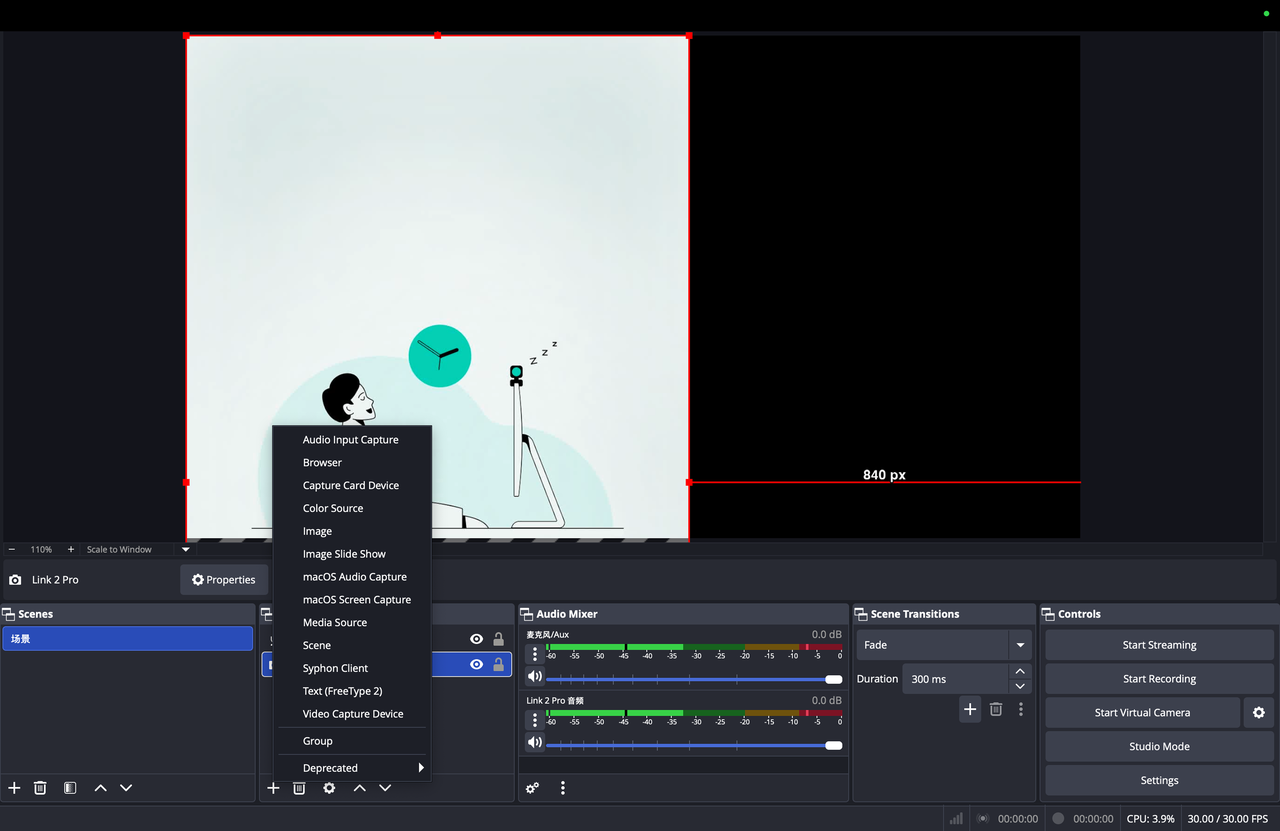
- In the OBS "Sources" panel, click "+" → select "Video Capture Device."
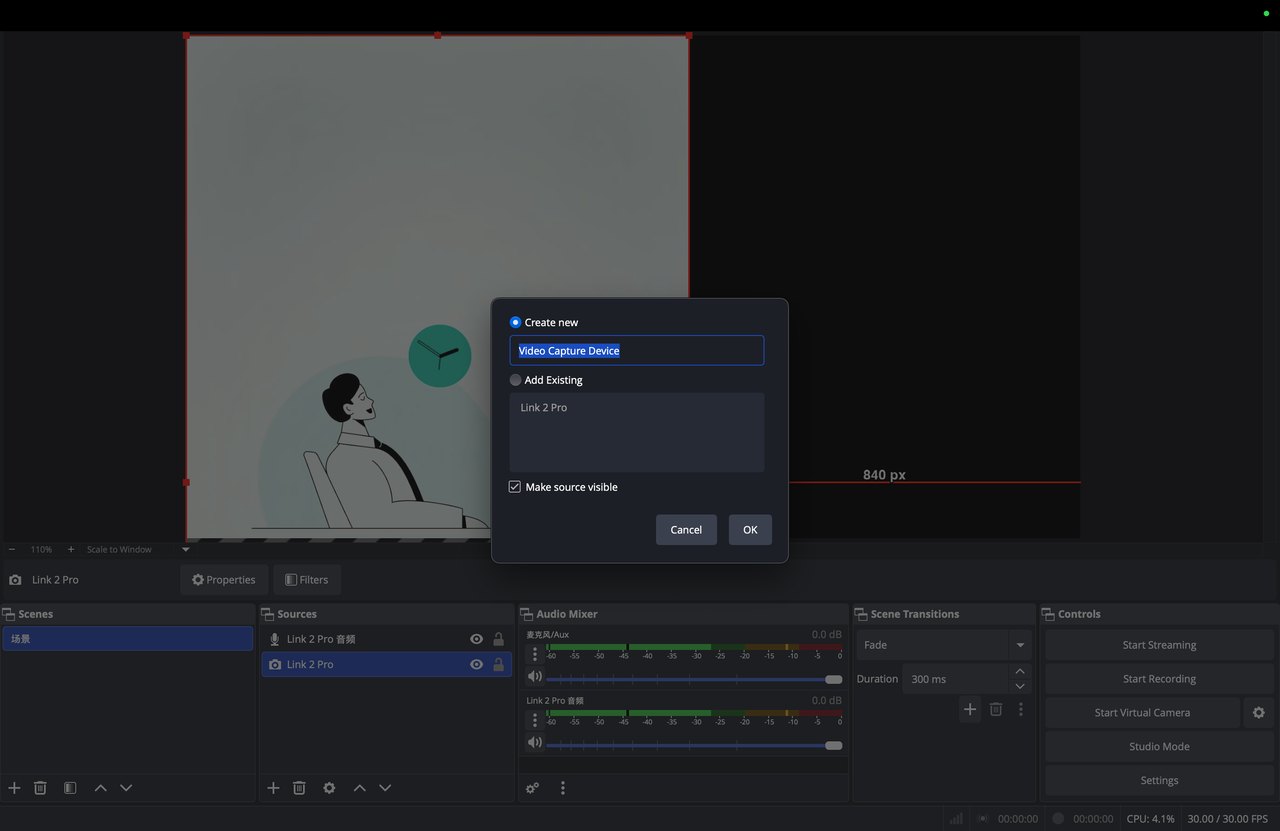
- In the settings pop-up, check "Create new," enter a camera name, and click "OK." In the "Device" dropdown menu of the next pop-up, scroll down and select your target Link series camera.
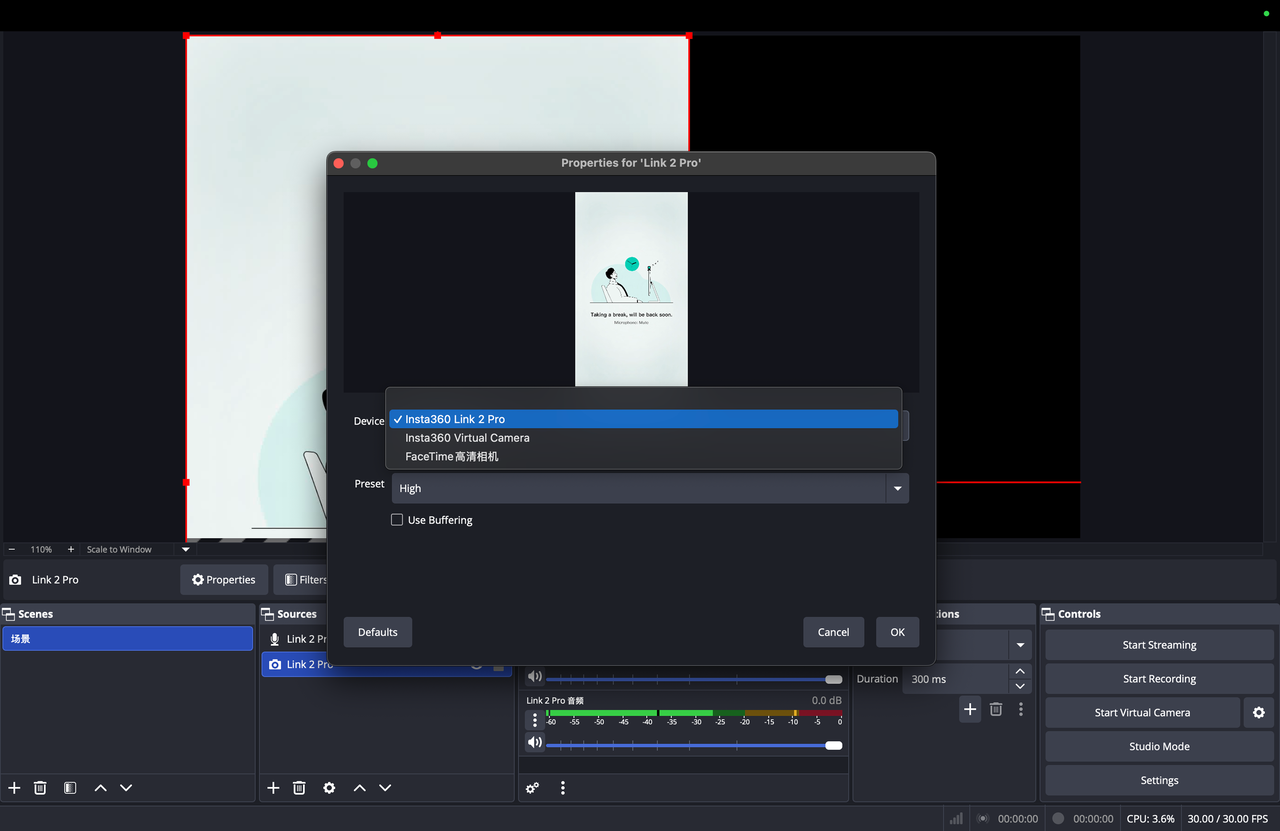
- When creating a new source or selecting an existing one, in the "Device" dropdown menu:
- Select the camera labeled with the device model for basic features.
- Select "Insta360 Virtual Camera" for advanced features (the virtual camera feature must be enabled in the Link Controller first).
Adding the Camera Microphone as an Audio Source
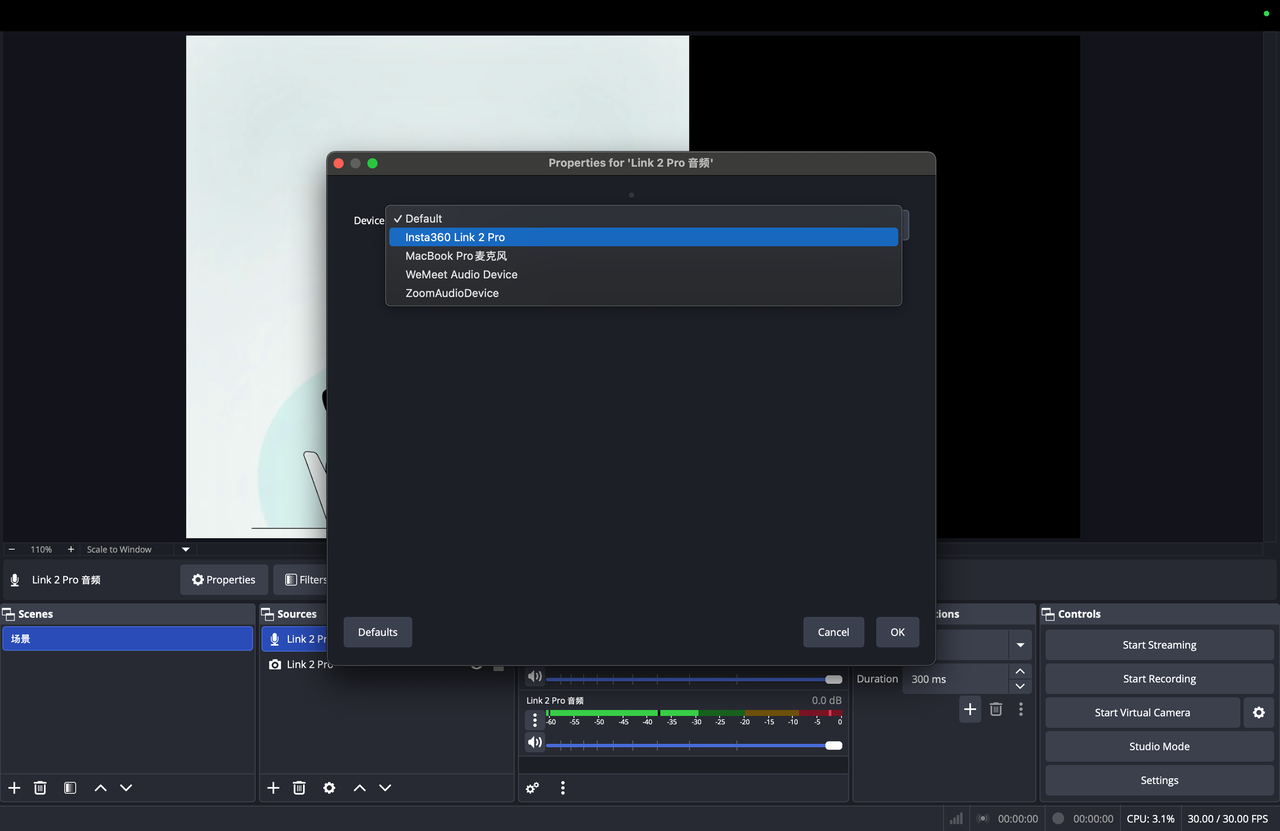
- In the OBS "Sources" panel, click "+" → select "Audio Input Capture."
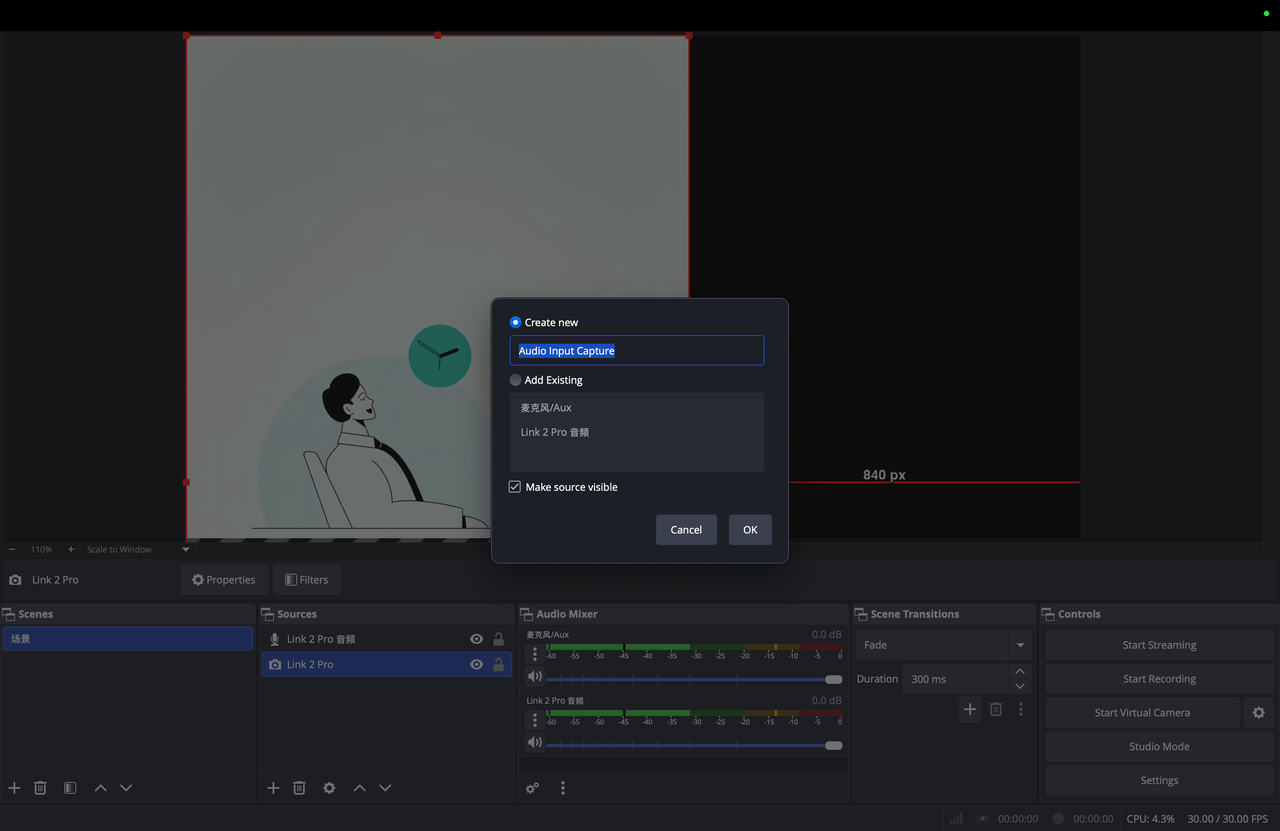
- Check "Create new," enter a microphone name (e.g., "Link 2 Pro Audio"), and click "OK." In the "Device" list, select the microphone of your target Link series camera and click "OK."
Notes
- You can add multiple camera sources by repeating the steps above.
- The physical and virtual cameras of the same device cannot output active video simultaneously. If one is in use, the other may display a black screen.


.svg)

