Connect the device to your computer using the included cable. The webcam will perform a self-check, then the indicator light will then turn solid green, indicating the camera is ready to use.
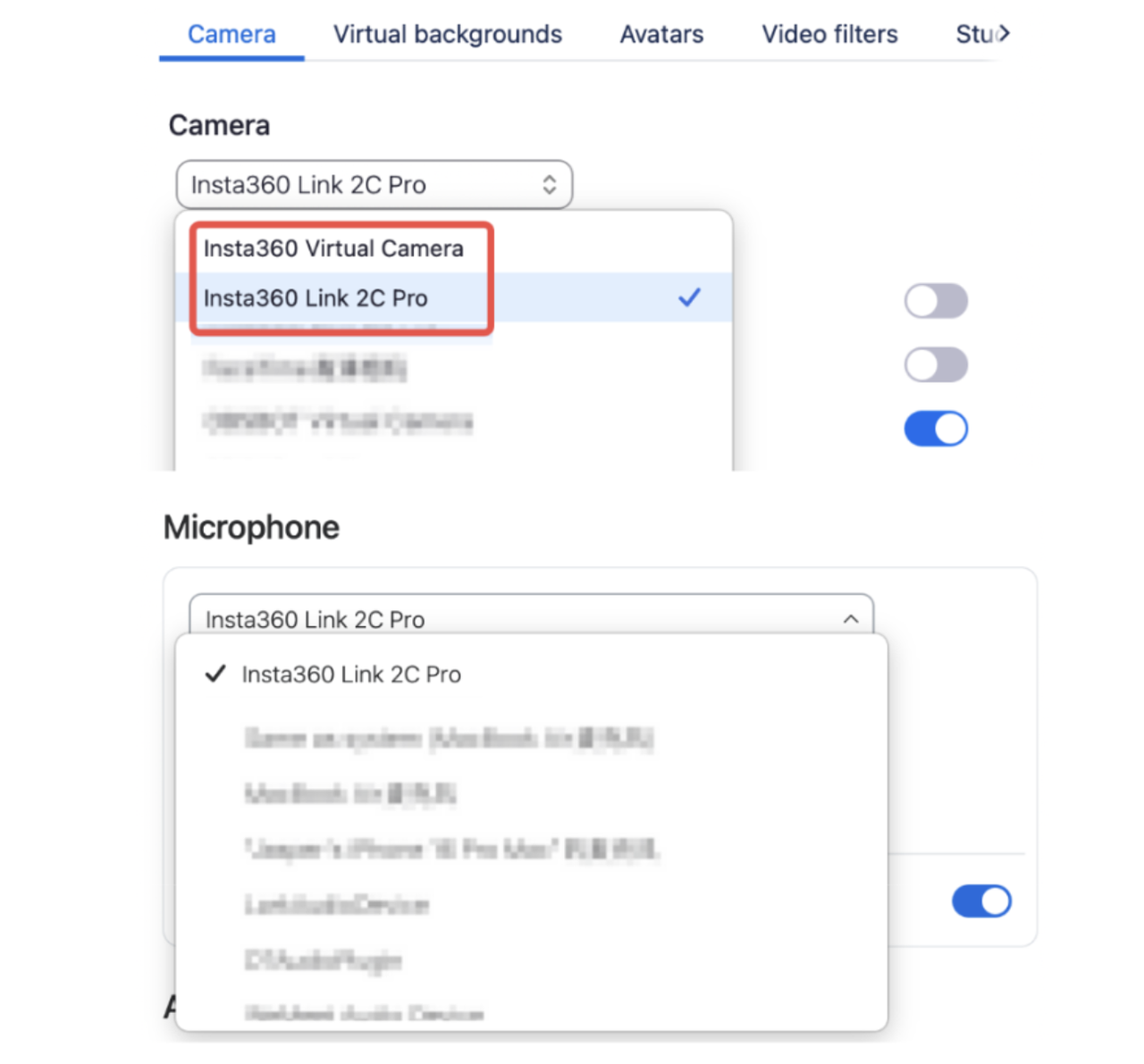
Once connected, you can select this device as the video and audio source in third-party video conferencing software. You will see two options in the camera/microphone settings list:
Insta360 Link 2C/2 Pro (Physical Camera Stream): Provides basic video and audio, and supports AI tracking control via the camera's buttons or gestures.
Insta360 Virtual Camera (Virtual Camera Stream): Enable this option to use all advanced features provided by the Insta360 Link Controller, such as Makeup, Beautify, Virtual Background, Smart Whiteboard, etc.
To experience the full performance of the device, it is recommended to download the Insta360 Link Controller software (hereinafter referred to as the "client") from the official website. This allows you to use features such as Smart Whiteboard, Background Replacement, Background Blur, Bokeh, Green Screen Keying, Makeup, Beautify, as well as utilize Insta360 InSight and customize AI Tracking settings (e.g., setting pause-track areas/tracking areas and adjusting tracking speed).
Notes:
To prevent malfunctions due to power supply, please connect the device directly to your computer or to a dock with an independent power supply. (Power requirements: 5V/1A)
This device is compatible with Windows and macOS computers. To avoid compatibility issues, please ensure you use the included cable to connect to your computer.


.svg)