Connecting
Q1 How do I connect EVO to my phone?
Insta360 EVO supports a Wi-Fi connection only.
- Method 1: EVO App auto-connect.
- 1) Turn on Wi-Fi and Bluetooth on your phone.
- 2) Press and hold the round button on the top of the camera for 3 seconds to turn on the camera.
- 3)Having successfully installed the app, tap the camera icon at the bottom of the screen and select "Connect via WiFi". Then, follow the on-screen instructions to connect your device. (The name of the camera is "EVO ******by default", where ******is the last six digits of the camera's serial number, you can find the serial number on the box the EVO came in.) The first time you connect to the camera via WiFi, please press the round buttom on the top of the camera to confirm your connection.
Note: The camera's effective Bluetooth range is 33 feet (10 meters) in optimal conditions.
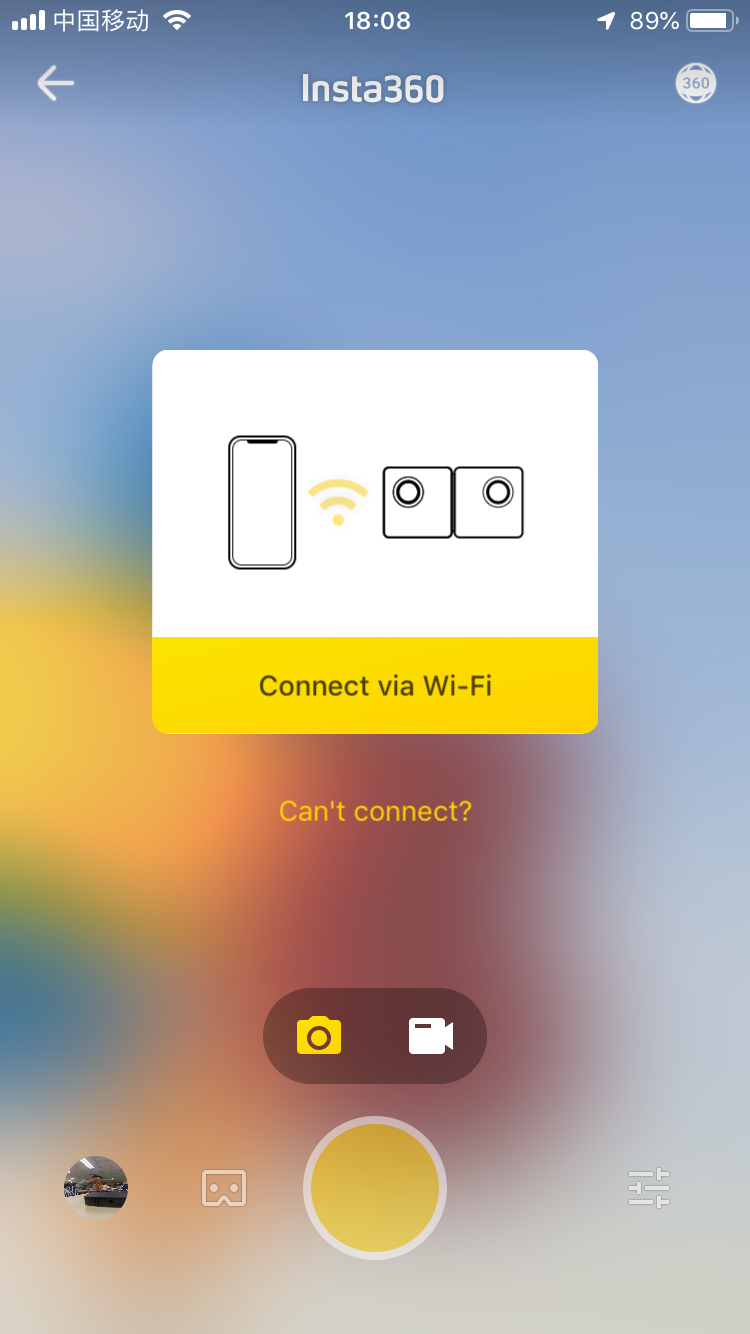
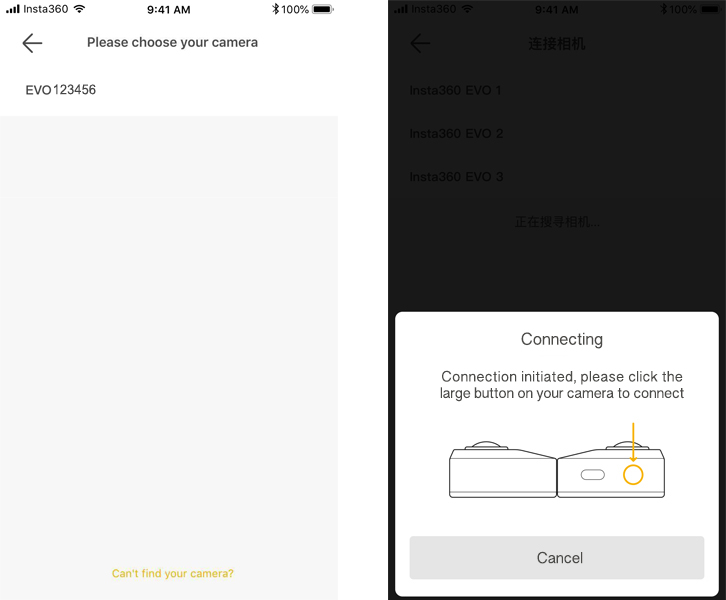
- 4)Having successfully connected to the camera, you can take photos or shoot videos via the app.
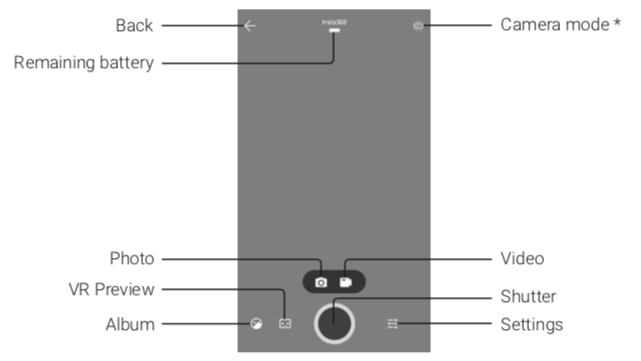
- 2.EVO App manual-connection
- 1) Turn on Wi-Fi and Bluetooth settings on your phone.
- 2) Press and hold the round button on the top of the camera for 3 seconds to turn on the camera.
<li>3)Go to the WiFi settings on your phone, select the EVO's WiFi and enter the password. (The password is 12345678 by default.)</li>
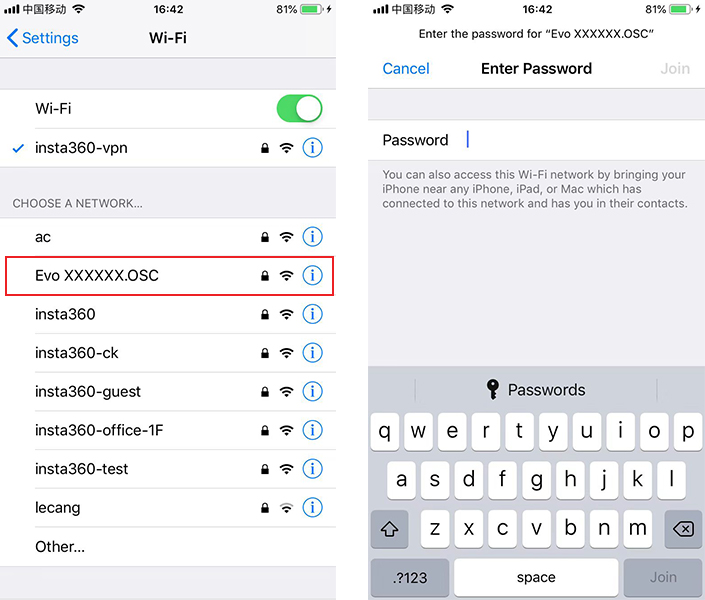 4)Having successfully connected to the camera, you can take photos or shoot videos via the app.
- Note:
After connecting for the first time, your phone can connect to the camera automatically within the EVO's Bluetooth effective range (33 feet) without pressing the shutter button to confirm your connection.
Q2 How do I connect the EVO to my computer?
Connect the camera to your computer with a USB cable, press and hold the round button to turn it on. Wait for the camera' s indicator to blink blue. The computer should now read the camera's SD card directly.
Please click here to contact us for further support.


