Online Chat
Office Hours: 24/7
Start Chat


Insta360 Connect supports up to three Insta360 Link 2 units in Multi-Camera Mode.
Use multiple cameras in sync to get wider coverage and flexible viewing angles, a great choice for medium to large meeting rooms or similar demanding setups.
Connect currently supports only Link 2, with no support for other models (such as Insta360 Link 2C or Insta360 Link).
Connect must be running firmware version v1.1.31 or later.
Link 2 must be updated to its latest firmware version. Please ensure both Link 2 and Connect are updated before trying this mode.
For guidance on updating Connect, refer to the “Firmware Upgrade” section of this user manual.
For Link 2, please see Link 2 Product Support.
When Link 2 is connected to Connect, its USB-C port will be in use. Becase of this, before connecting Link 2 to Connect, first connect it to a computer and complete any necessary configuration of settings via the Insta360 Link Controller software.
This could include video resolution, filters or effects, or even enabling features like AI Tracking or Gesture Control.
For a full guide on configuring your Link 2, please see Link 2 Product Support.
Using three Link 2 cameras as an example, the following two solutions are recommended.
These layouts are for reference only. You may adjust them based on the number of Link 2 units, room layout, and your own requirements.
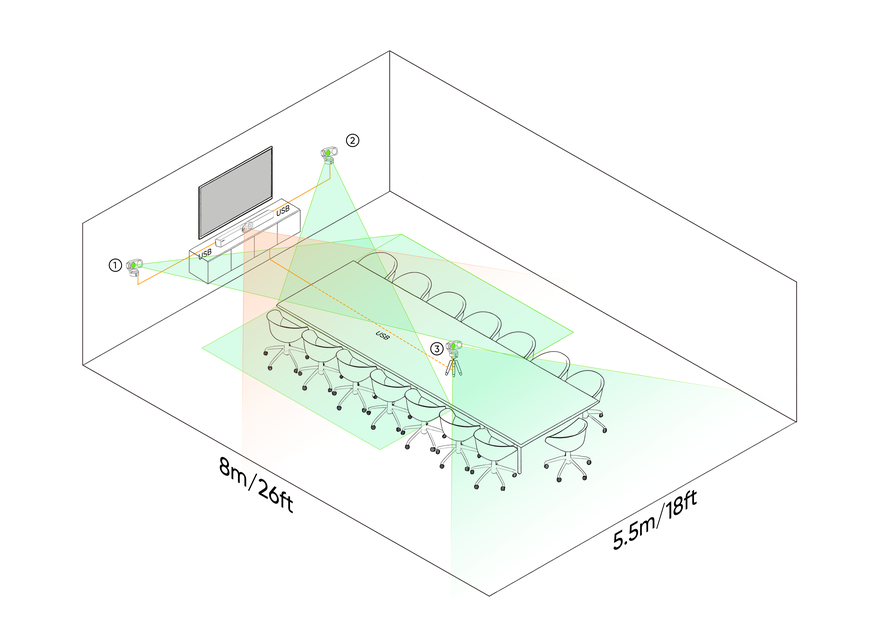
Meeting Room Size
5.5 m × 8 m (18 ft × 26 ft)
Link 2 Usage
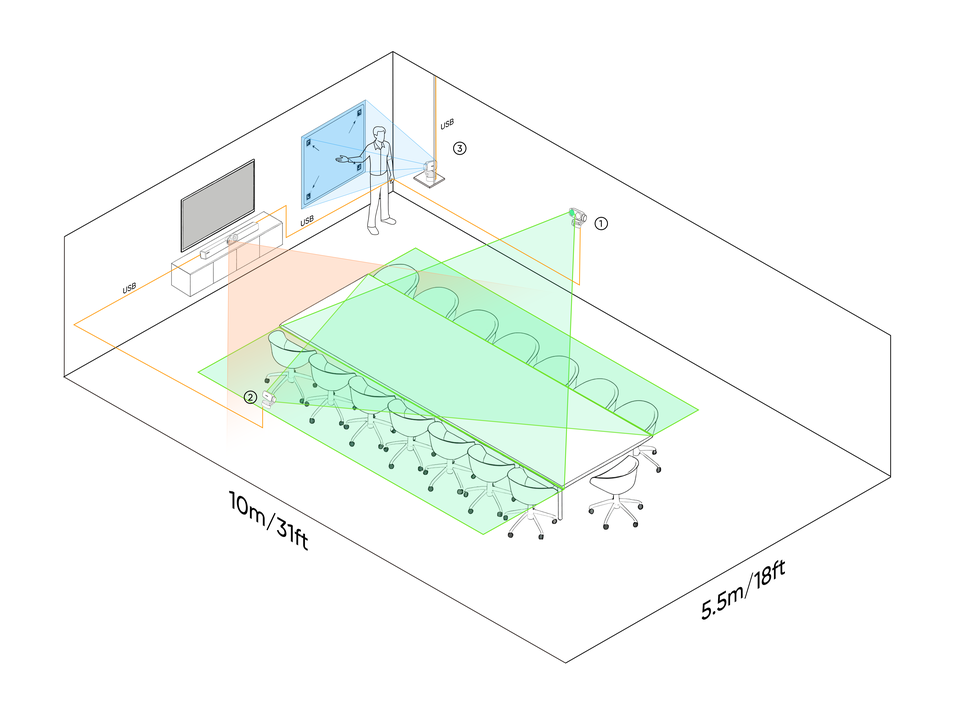
Meeting Room Size
5.5 m × 10 m (18 ft × 31 ft)
Link 2 Camera Usage
Note: For the best experience and to ensure a stable connection, please disconnect Connect’s power supply before continuing.
When the total number of Link 2 cameras and touch panel is two or fewer (≤ 2), use a USB cable, connecting from the USB-C port of Link 2 to the USB-A port of Connect.
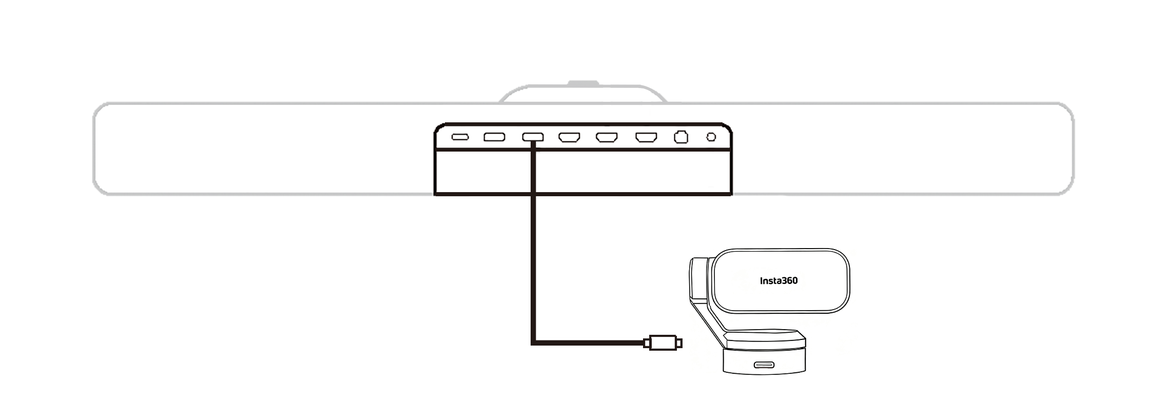
When the total number of Link 2 cameras and touch panel is greater than two (> 2), a docking station is required. Use USB cables to connect each Link 2 to the docking station, and then connect the docking station’s host cable to the USB-A port of Connect.
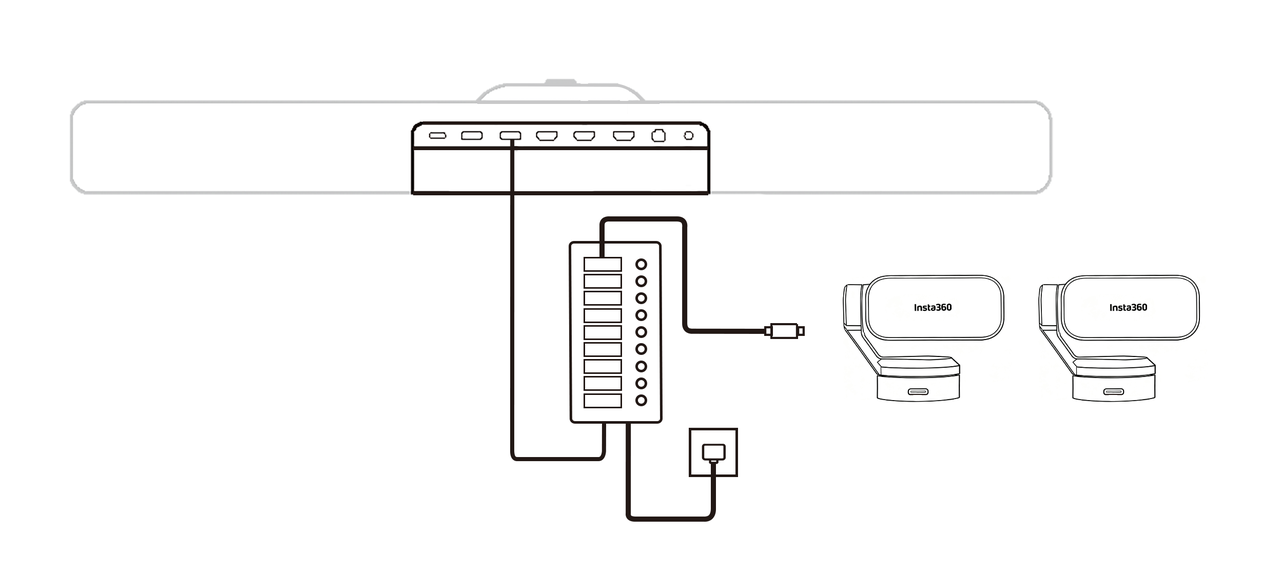
Docking Station Requirements
Both USB-A ports on the back of Connect can be used to connect Link 2 cameras or a docking station. The USB-C port does not support these connections.
For optimal data transmission, we recommend using the USB 3.0 port.
To ensure optimal audio and video transmission quality, it is recommended to use the Insta360 Connect Extra Long USB-A to USB-C Cable.
If using third-party cables longer than 5 m, select USB cables with signal amplifiers, and confirm compatibility through practical testing. Since the USB cable must also supply power to Link 2, do not use fiber-optic-only cables.
Tip: For a better user experience, it is recommended to use Connect together with the touch panel.
1. Adjust the Direction of Link 2
When using Link 2 with Connect, you may reset the camera orientation via Connect's interface. Before use, ensure that the touch key on Link 2 faces the target subject. This ensures that the camera faces the correct direction when reset.
2. Connect the Power Supply
Power Connect via its power source. If a docking station is used, make sure it is also connected to power.
Tip: Once powered on, Link 2 will start automatically. During startup, do not manually move or obstruct the camera, as doing so may cause it to face downward and enter Privacy Mode by accident.
3. Check Video and Audio Input Devices (Bring-Your-Own-Device Mode Only)
In your computer’s system settings or video conferencing software, confirm that Connect is selected as both the video and audio input device.
4. Enter Multi-Camera Mode
Go to Settings > Camera on Connect and complete the following steps:
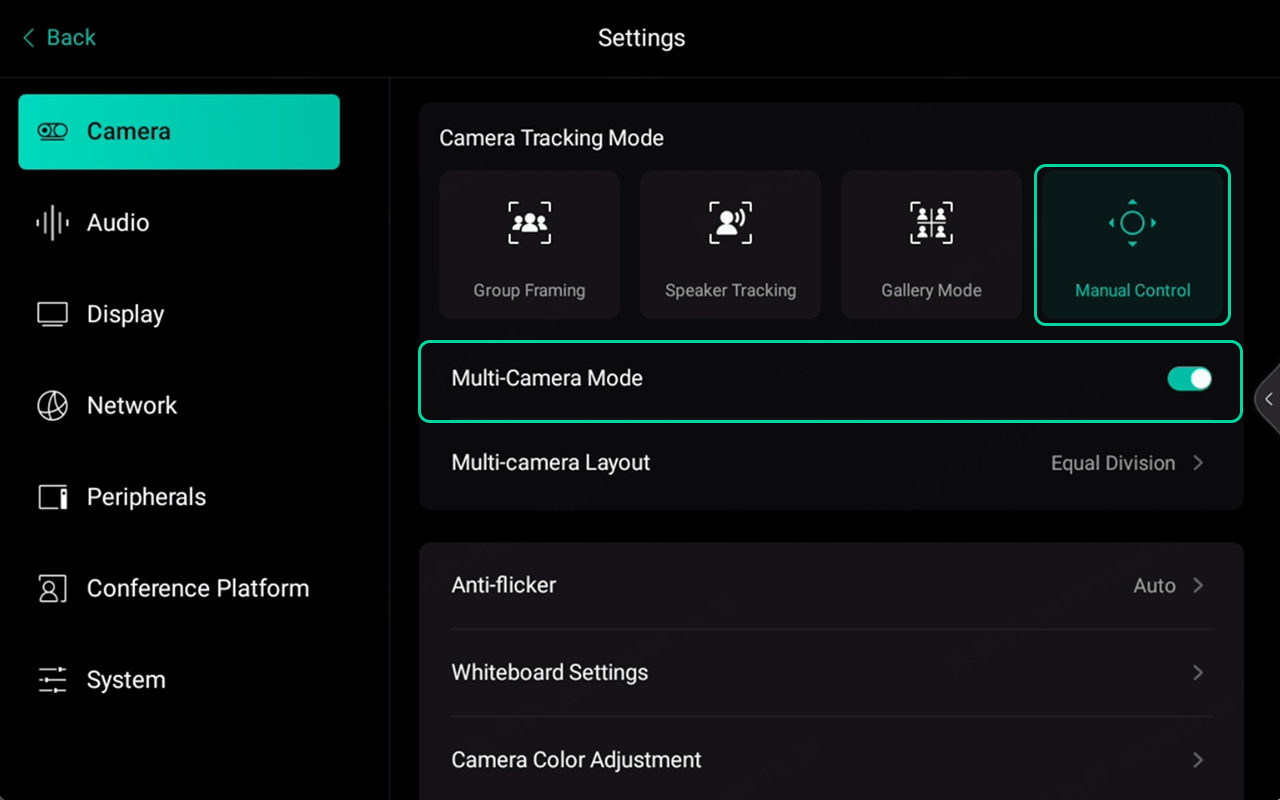
5. Set Multi-Camera Layout
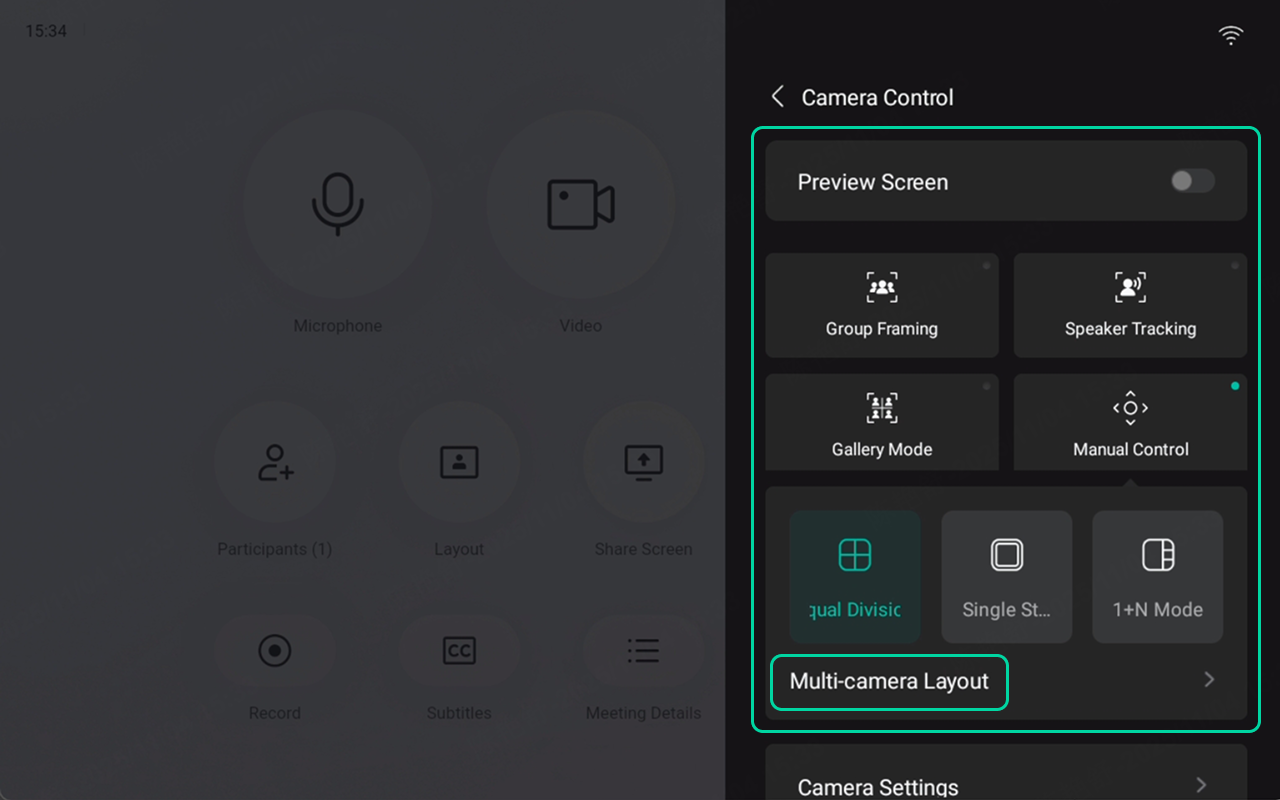
You can configure the multi-camera layout by going to Settings > Camera, or from the main control interface of Connect.
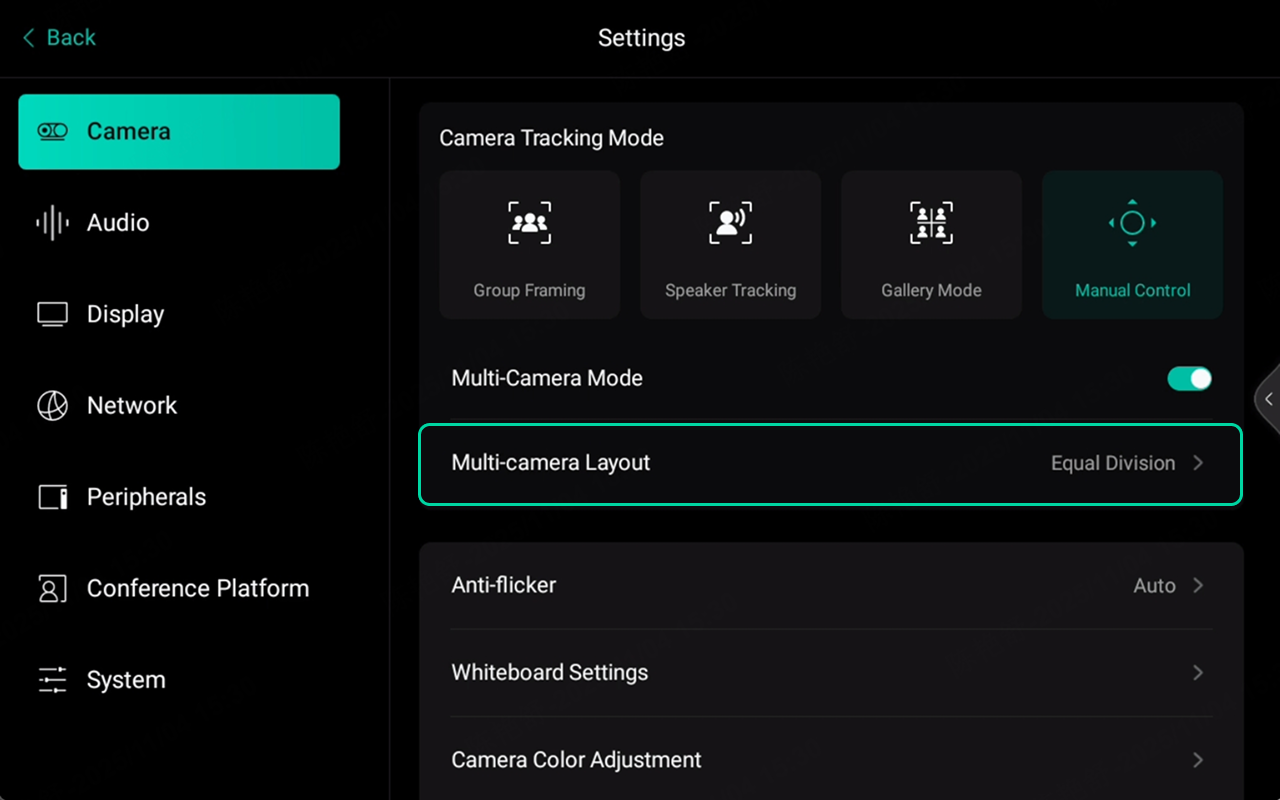
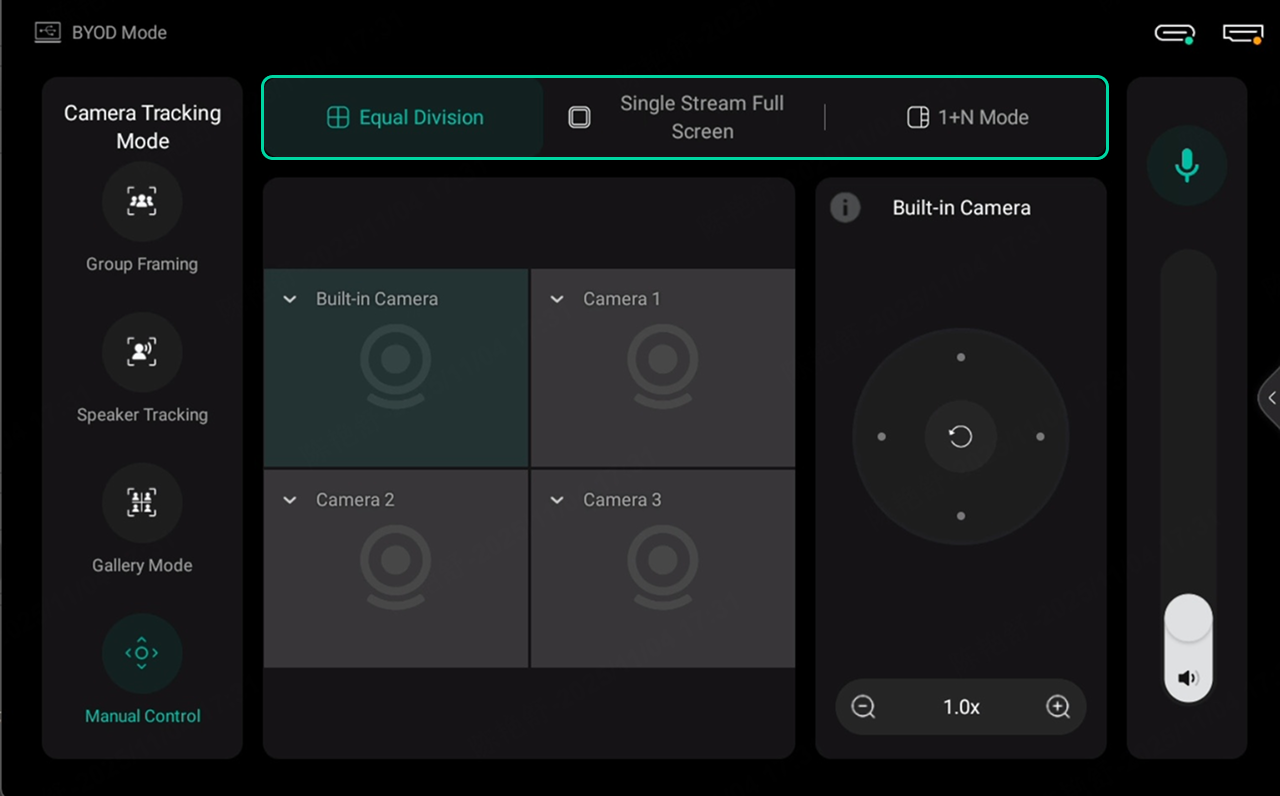
Currently, three layout modes are available:
6. Adjust Cameras
In the main control interface on Connect, you can adjust the camera angle and zoom level. If multiple cameras are active, select the camera you wish to adjust before making any changes.
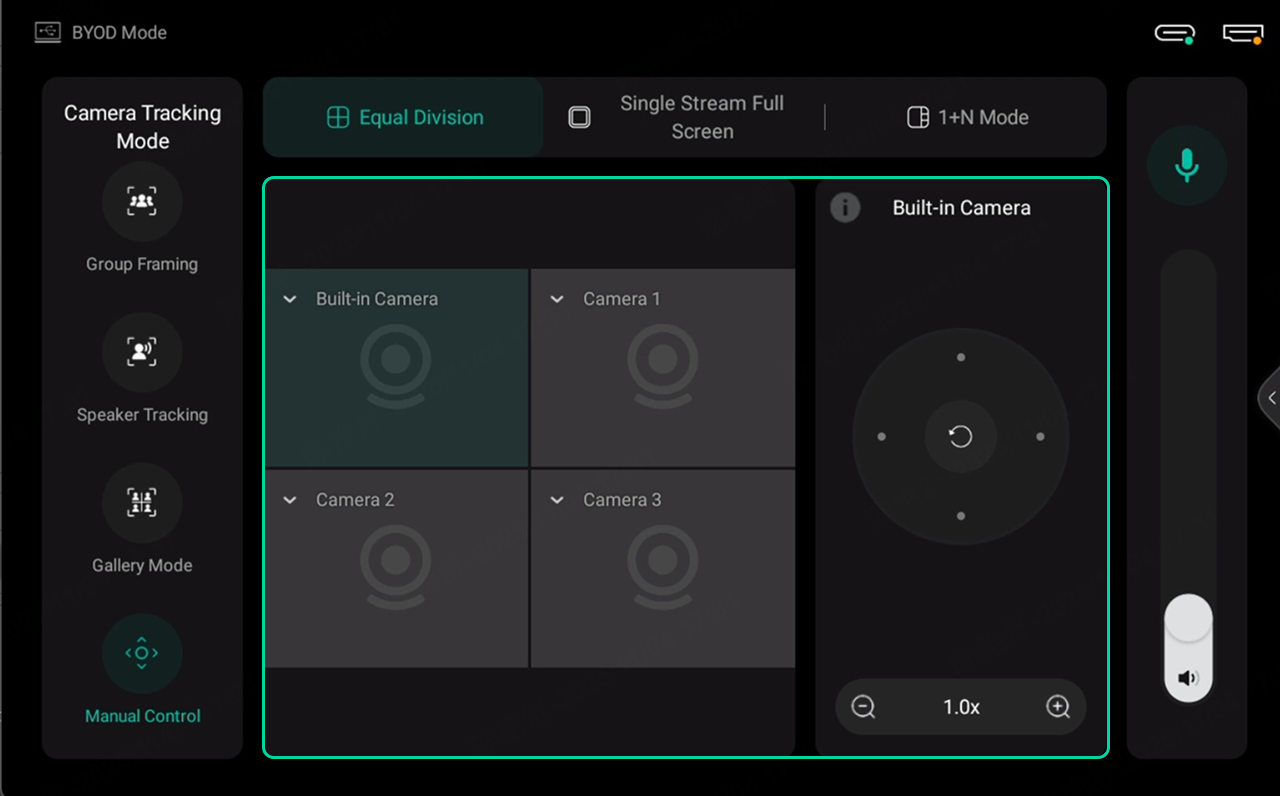
7. Adjust During Meetings
During a meeting, to adjust the camera tracking mode or layout, open the sidebar and configure the settings.
To change the camera angle or zoom level, open the sidebar and tap Multi-camera Layout to access more settings.