Log Upload
To help you quickly locate and resolve issues encountered during use, we provide a convenient log upload feature. You can upload log files from the device, virtual camera, or Link Controller client using either of the following methods.
Method 1: Upload directly through the client
This method allows you to upload all related logs at once when the camera is properly connected to the client.
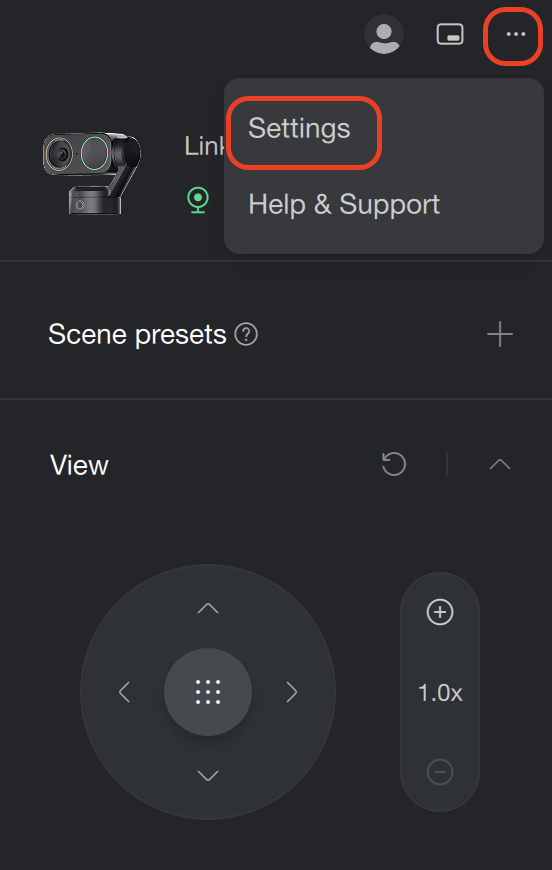
- Open the Link Controller client and click "More Settings" (… icon) in the upper-right corner.
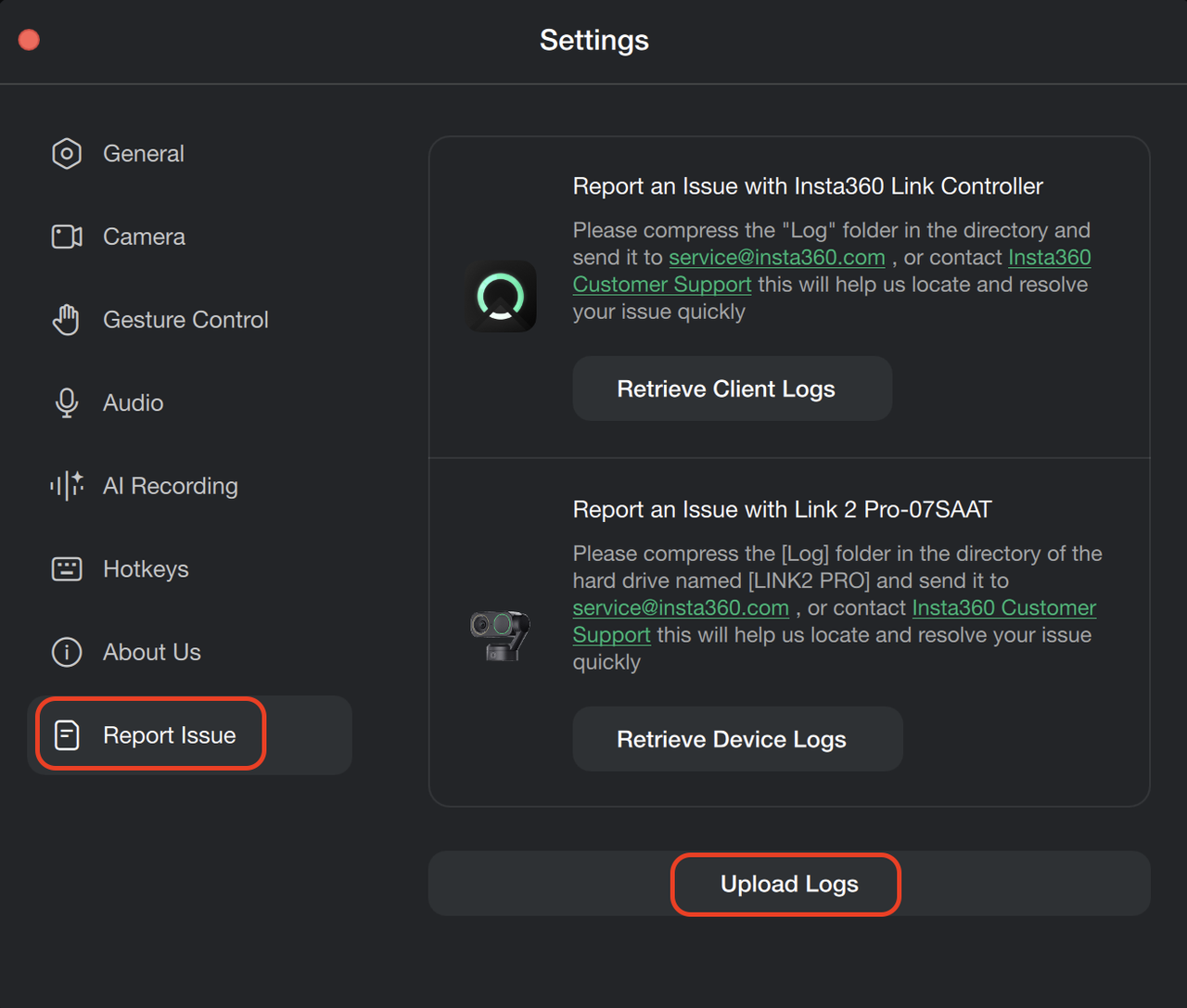
- Select "Report Issue".
- Click "Upload Logs".
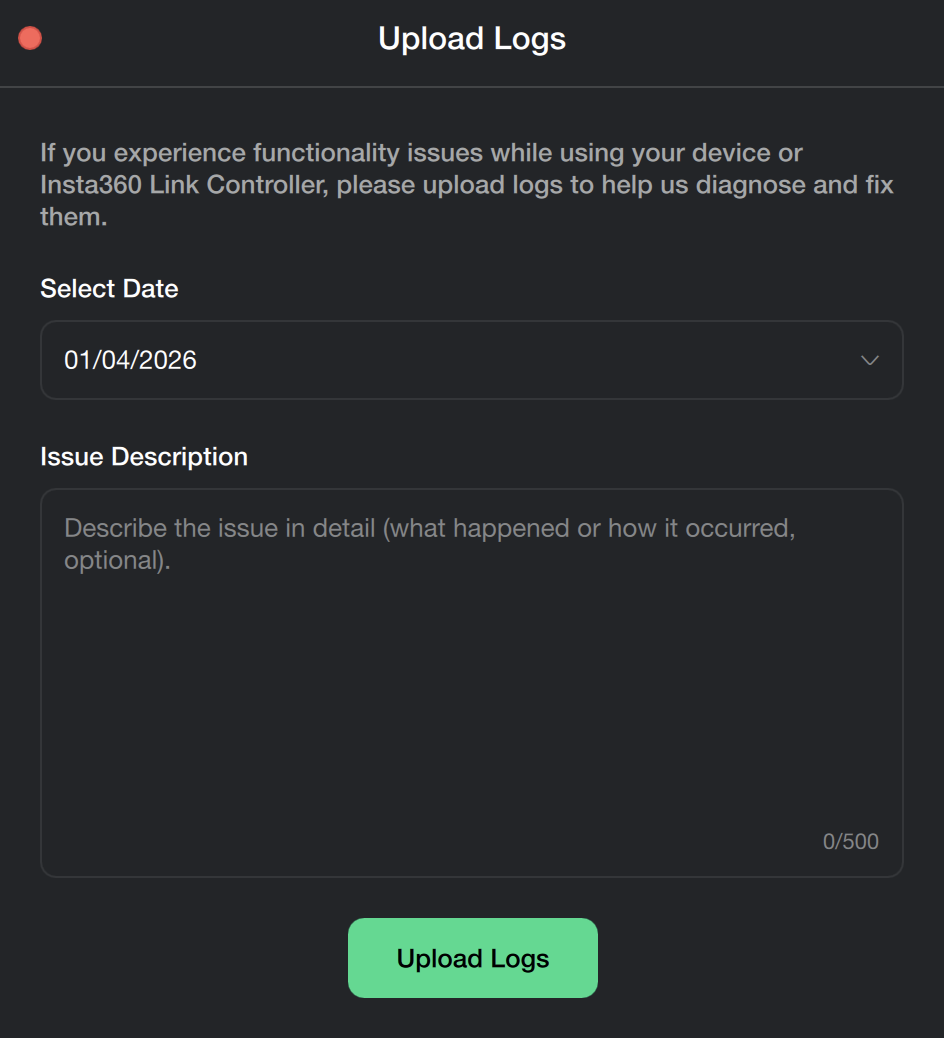
- In the pop-up window, select the date when the issue occurred and briefly describe the problem you encountered.
- Click "Upload Logs" and wait for the upload to complete.
- After a successful upload, click "Copy Log ID" and provide this log ID to the Insta360 support team.
Tip: When the camera and client are properly connected, this method can upload device logs, virtual camera logs, and Link Controller client logs all at once. During the log upload process, the camera will enter USB drive mode. Be sure to wait until the upload progress is complete and a success message is shown before manually unplugging and reconnecting the USB cable to restart the camera. Do not disconnect the connection before the upload is finished, as this may cause log corruption or upload failure.
Method 2: Manually obtain and export log files
If you need to manually check or submit log files, use this method.
- Open the Link Controller client and click "More Settings" in the upper-right corner.
- Select "Report Issue".
- Click "Retrive Client Logs". The system will automatically generate a log file package locally on your computer.
- You can directly provide this file package to the support team.
- The logs exported in this step include Link Controller client logs and virtual camera logs.
- To export the device’s own logs separately, on the "Report Issue" page, locate the connected device name and click the "Retrive Device Logs" button below it.


.svg)

